GitHub is the world’s largest code hosting platform, used by more than 70 million developers. Although Git and GitHub are mainly tools for programmers, plenty of software projects and game-related resources are hosted there too—Terraria’s tModLoader, many Minecraft mods, and all kinds of small utilities, for example. So even if you do not write code, you may still end up opening GitHub just to download something.
This guide is for ordinary users who only need the practical parts: how to open GitHub, how to find the actual download button, and how to report a bug without making life harder for the developer.
Opening GitHub
GitHub’s main website is:
https://github.com/
If everything goes smoothly, you can open it directly. However, GitHub is not under domestic network regulation in China, while a large number of developers in China still need to use it. As a result, GitHub often gets affected by SNI interference and may randomly switch between accessible and inaccessible.
If GitHub happens to be blocked or unstable when you visit it, common solutions include:
- Using a proxy/VPN-like network tool, which is the most complete fix
- Using the Steam++ acceleration service and selecting “GitHub” — free
- Using a game accelerator such as NetEase UU Accelerator and selecting “Academic Resources” — free
GitHub is not just one domain. It relies on several related domains to provide the full service. Some of them are completely blocked in China, such as raw.githubusercontent.com, which is often used to display images or raw files. If images in a project fail to load and you really need to see them, the acceleration methods above can help with that too.
Downloading the resource you want
Let’s use a Genshin Impact wish export tool as an example. Suppose you found this GitHub link somewhere:
https://github.com/biuuu/genshin-wish-export
After opening it, you may notice that the page is basically in English, except for whatever the project author wrote. Yes, GitHub itself does not have a Chinese interface. Fortunately, ordinary users only need a few functions, and after going through the process once, it is not that complicated.
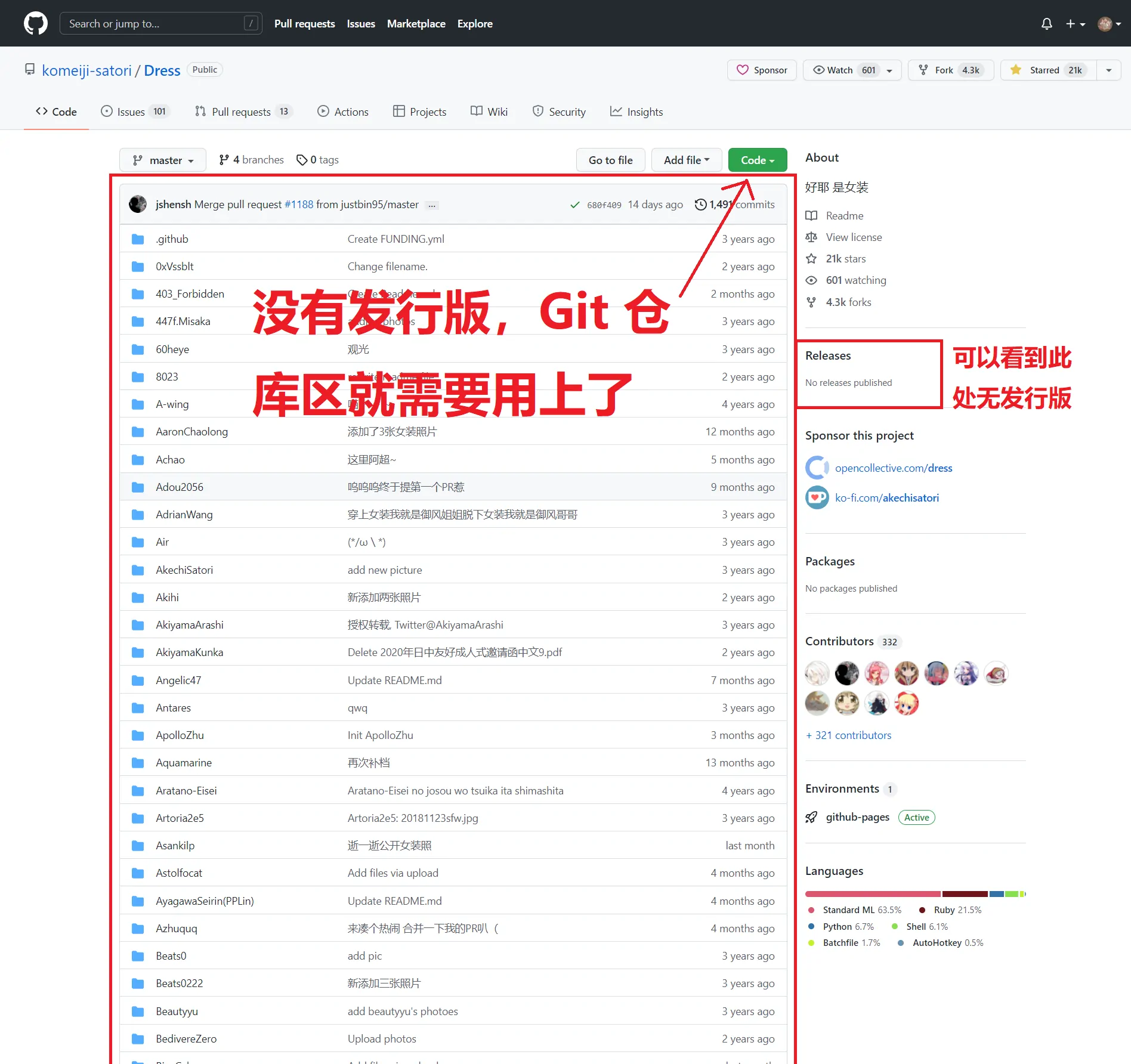
On a typical GitHub repository page, the two largest areas are the Git repository file list and the README document. The actual software download area is much smaller, which is exactly why many people cannot find where to download the program.
When the project provides releases
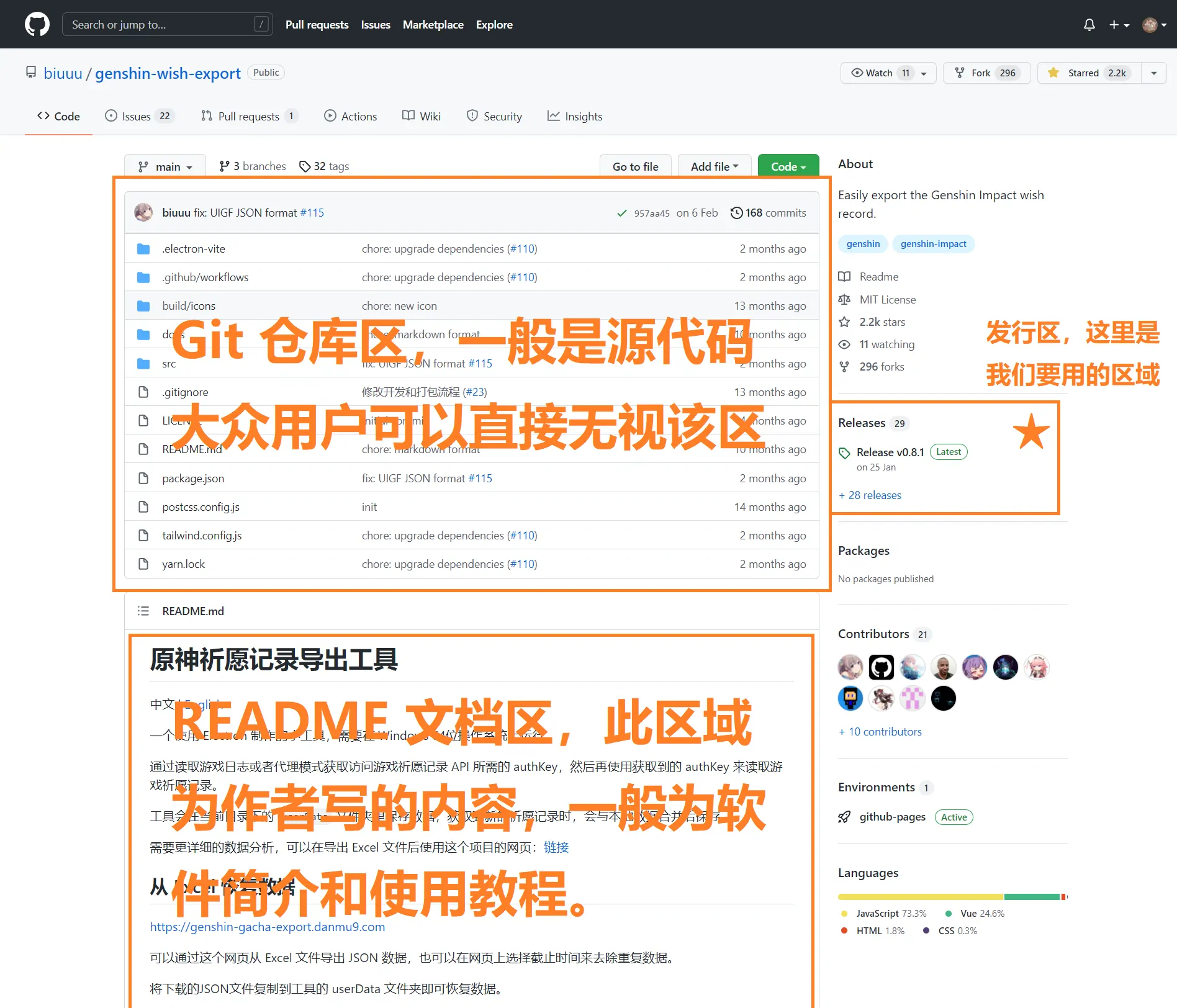
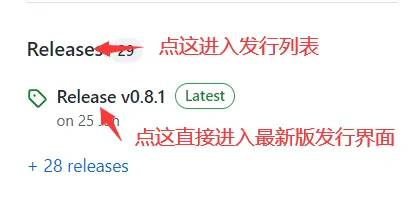
Look for the Releases section. You can click Releases to open the full list of published versions, or click the version marked Latest to jump directly to the newest release.
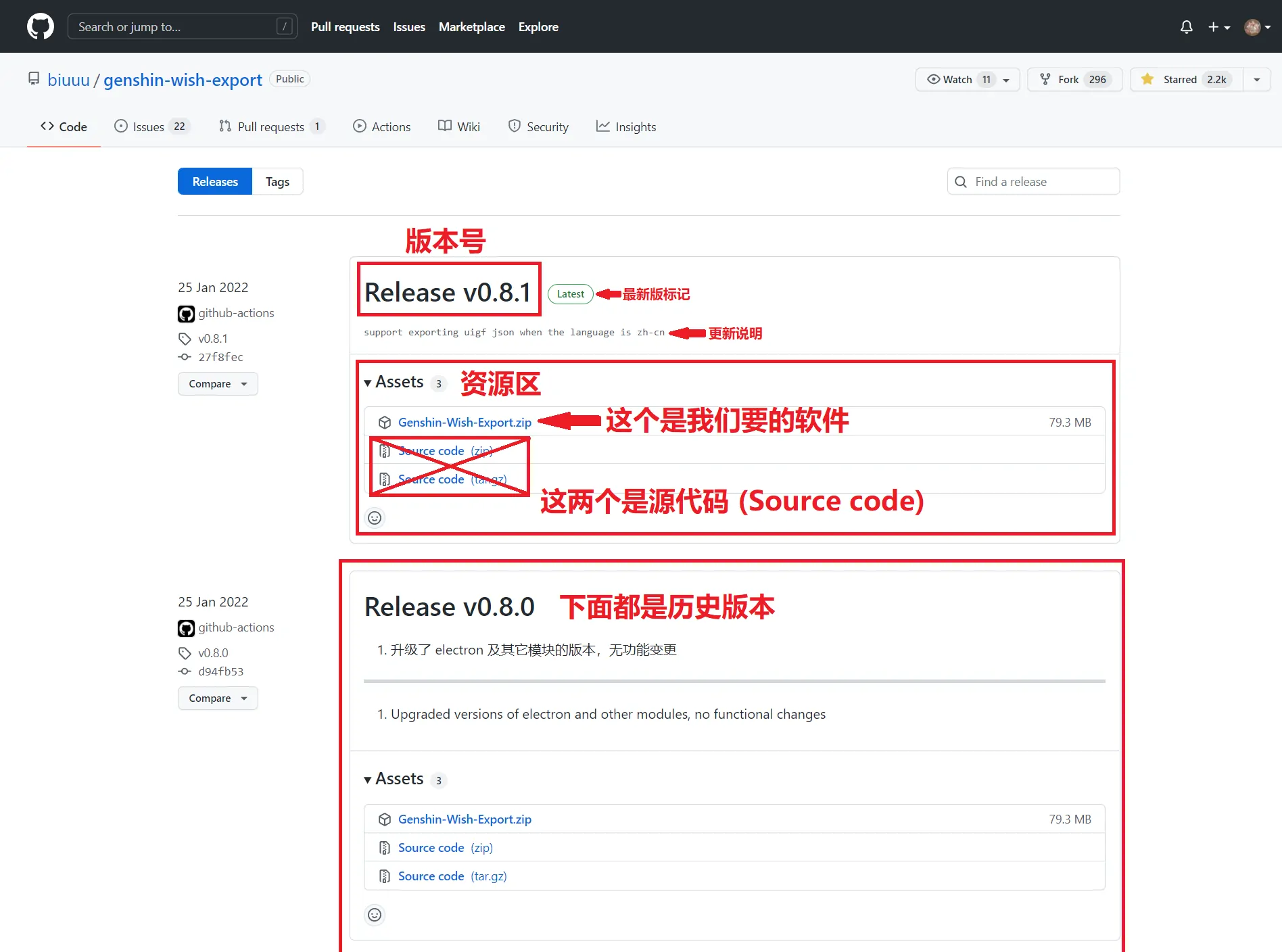
After entering the releases page, the most important thing is this: do not download Source code if you simply want to run the software. Source code is uncompiled code and usually cannot be opened like a normal program. Download the ready-made software package above it instead. It may be a .zip archive, but it could also be an .exe installer or another file type.
Sometimes a release does not provide just one file. Instead, you may see a long list of versions for different systems and processor architectures. This is another place where ordinary users often get stuck. Here is the short version of what the names usually mean.
By operating system:
- Windows: usually contains
Windowsin the filename. Common formats include.exe,.msi, or compressed archives. Most Windows users should choose this. - Linux: usually contains
Linuxin the filename. It may have no extension or may be provided as an archive. - MacOS: usually contains
Macin the filename. Common formats include.dmg, files without an extension, or compressed archives.
By processor architecture:
- x86-64: the 64-bit version. It is usually marked as
x86-64,x64,amd64, orIA64. Most users should choose this. - x86: the 32-bit version. It is usually marked as
x86,i386, orIA32. - Other architectures: there are also ARM versions and many other variants, which most people do not need. One common trap:
arm64means an ARM architecture build. Do not confuse it withamd64, which is the normal 64-bit PC version in many cases.
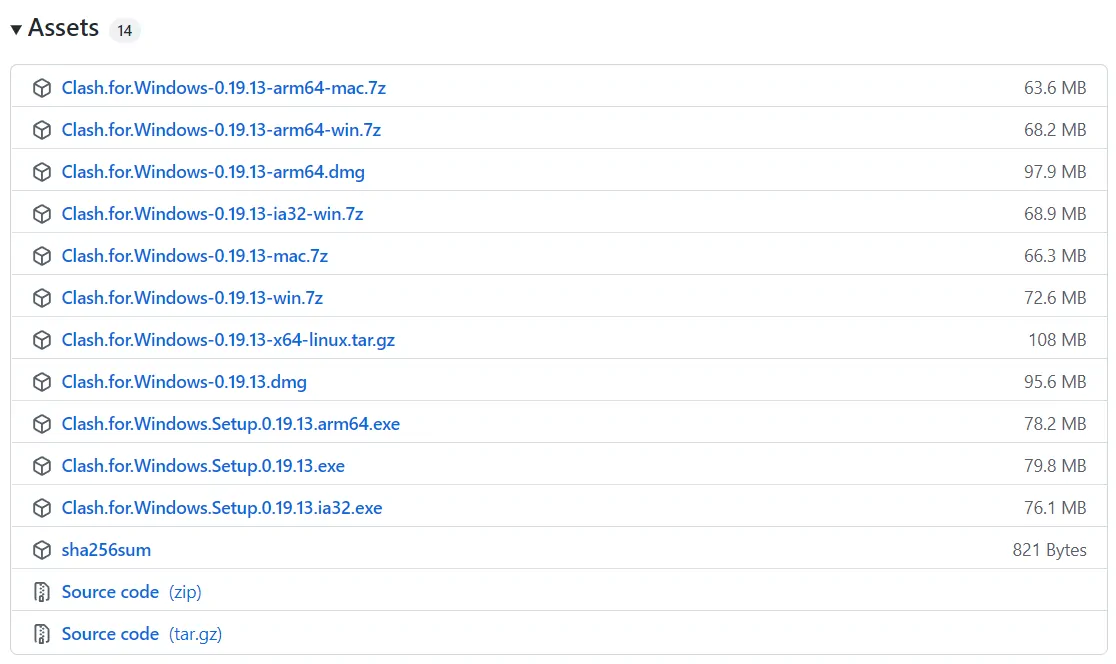
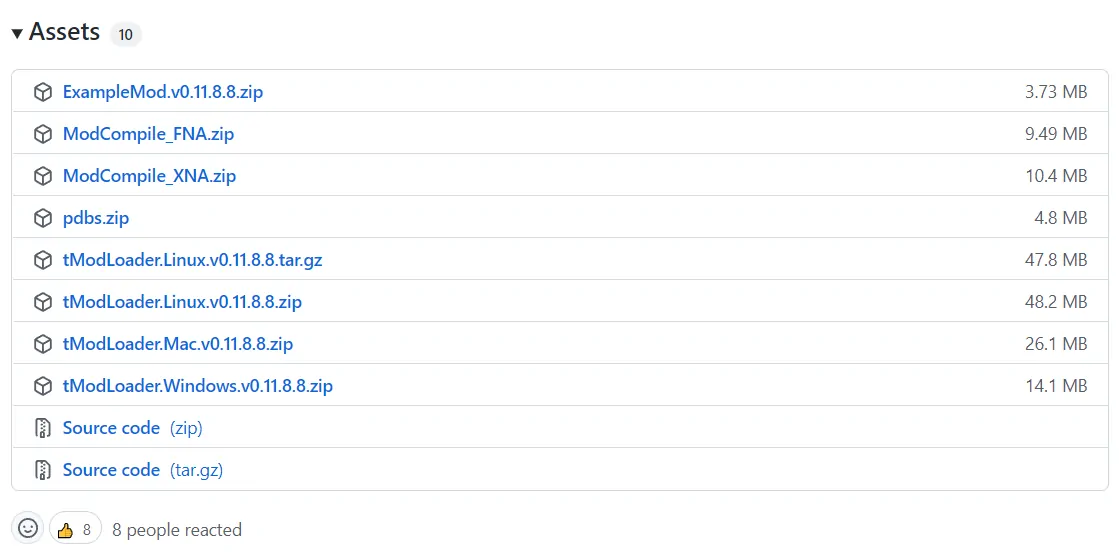
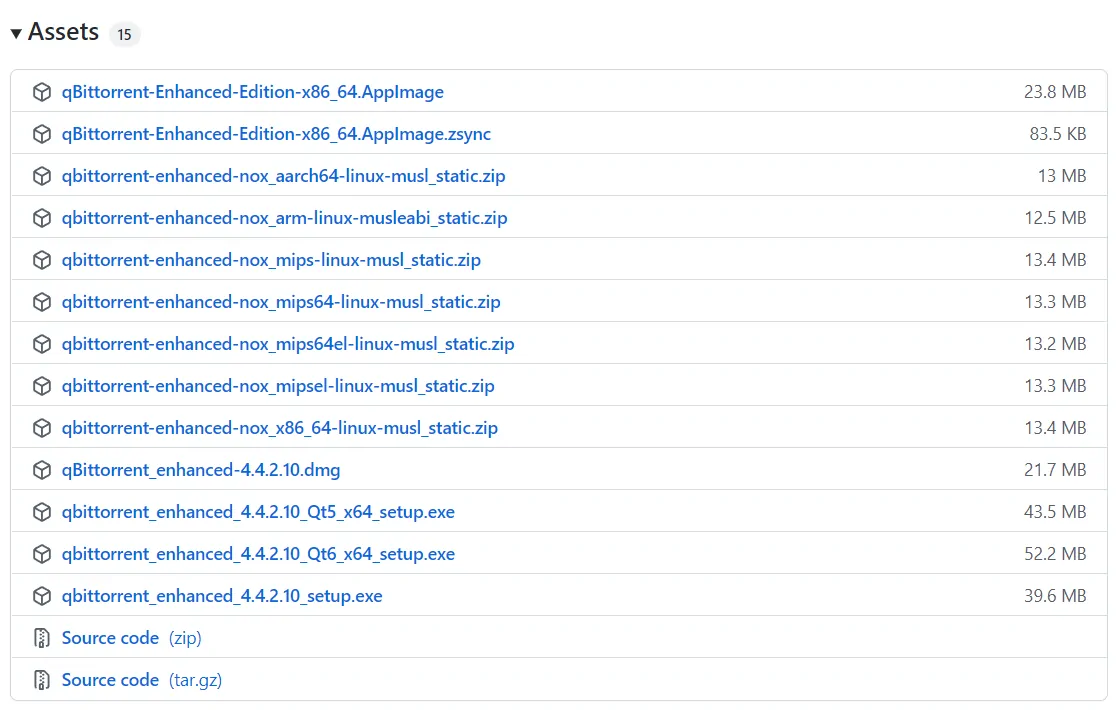
Once you click the correct file, the download starts. GitHub downloads do not require you to register or sign in, which is convenient.
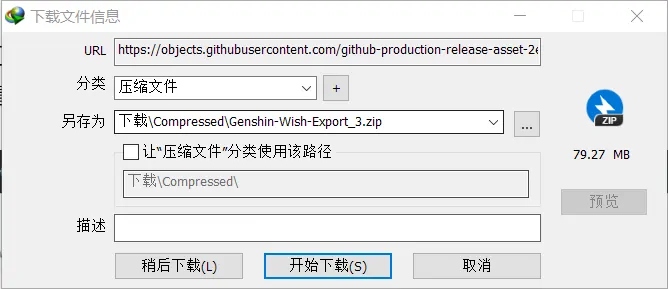
Because of the special network situation in China, downloads may be slow. You can try a multi-threaded download manager or use a proxy/VPN-like tool to speed things up.
When the project has no releases
Not every repository provides a ready-made release. As an example, here is a repository link:
https://github.com/komeiji-satori/Dress
Sometimes a project you want really does not provide a release version. In that case, you can still download the files in the repository.
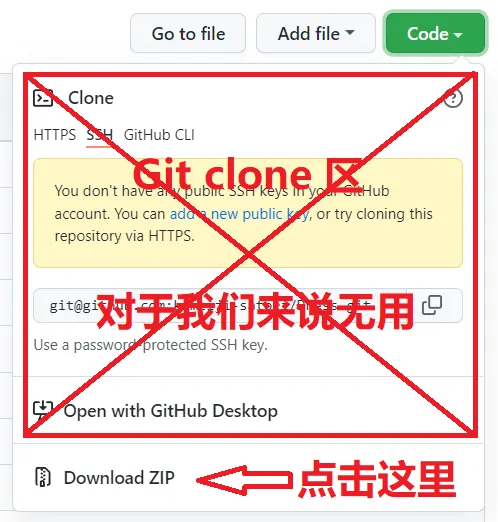
On the repository page, find the green Code button in the upper-right corner of the file list. Click it, and a small panel will pop up.
In that panel, click Download ZIP. This downloads all current files in the repository as a ZIP archive. The Clone section above it is for developers and can be ignored if you only want to download the files. This also does not require logging in.
Reporting software bugs
warning A note about opening issues
Random issues, vague issue descriptions, or opening an issue and then disappearing can seriously disrupt software development. If you are not willing to spend time describing the bug properly, it is better not to report it. If you do decide to report a bug, take it seriously.
Opening an issue requires a GitHub account.
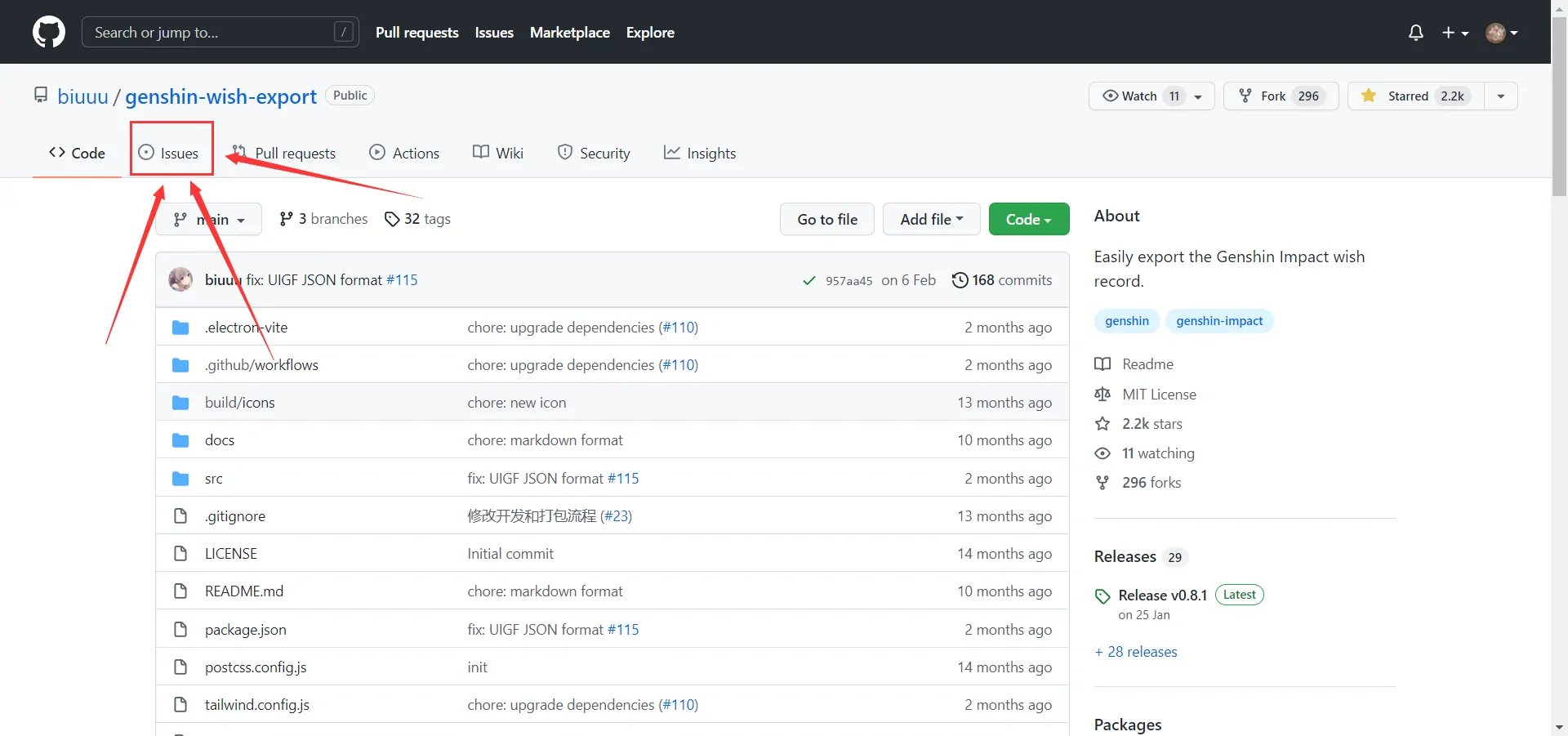
First, go to the project’s Issues page. On the repository homepage, click the Issues tab near the top.
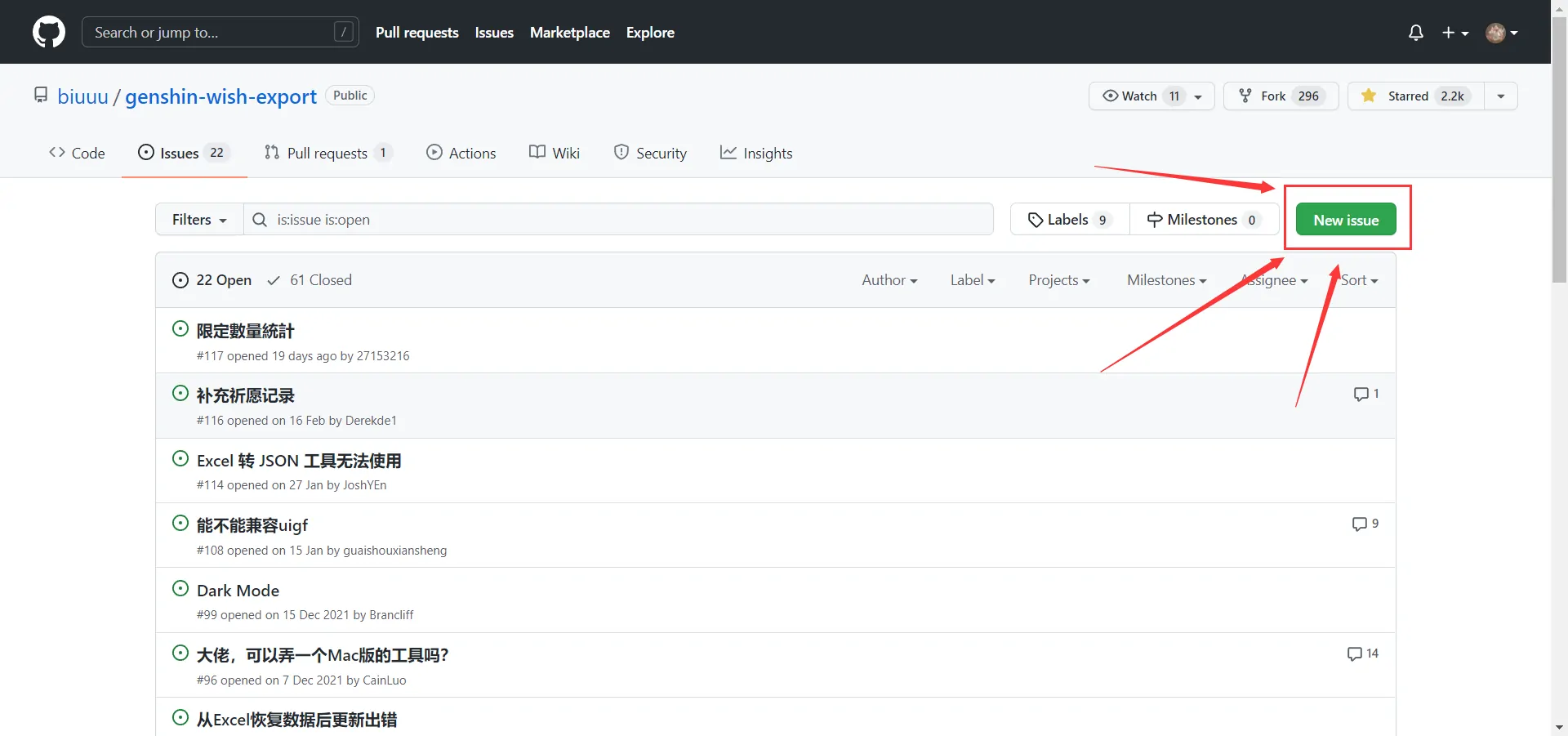
Then click the green New issue button on the right.
The normal issue form
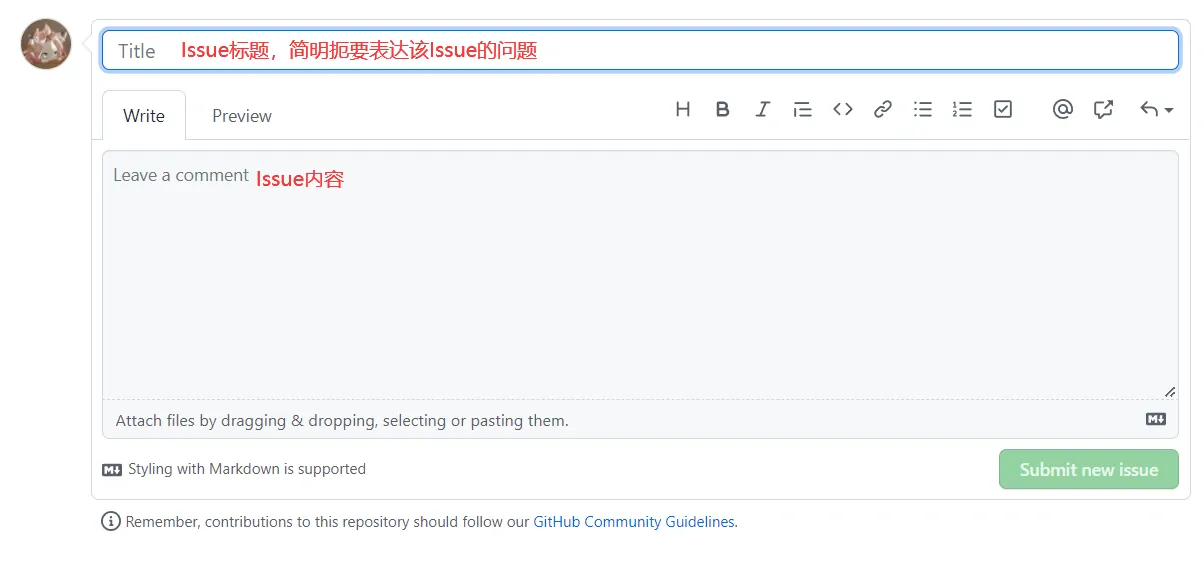
After that, you will enter the new issue page.
Note: if the project author is Chinese, using Chinese is fine. If the author is from another country, write in English.
You need to fill in the Title. The title should briefly and clearly describe the bug you found or the feature you want. A title like “Boss, can you make a Mac version?” is not a good issue title.
Then fill in the Comment area. This is where you should explain the problem or request in detail.
After writing it, click Submit new issue in the lower-right corner to submit it. If the author replies, it is best to check and respond as soon as possible.
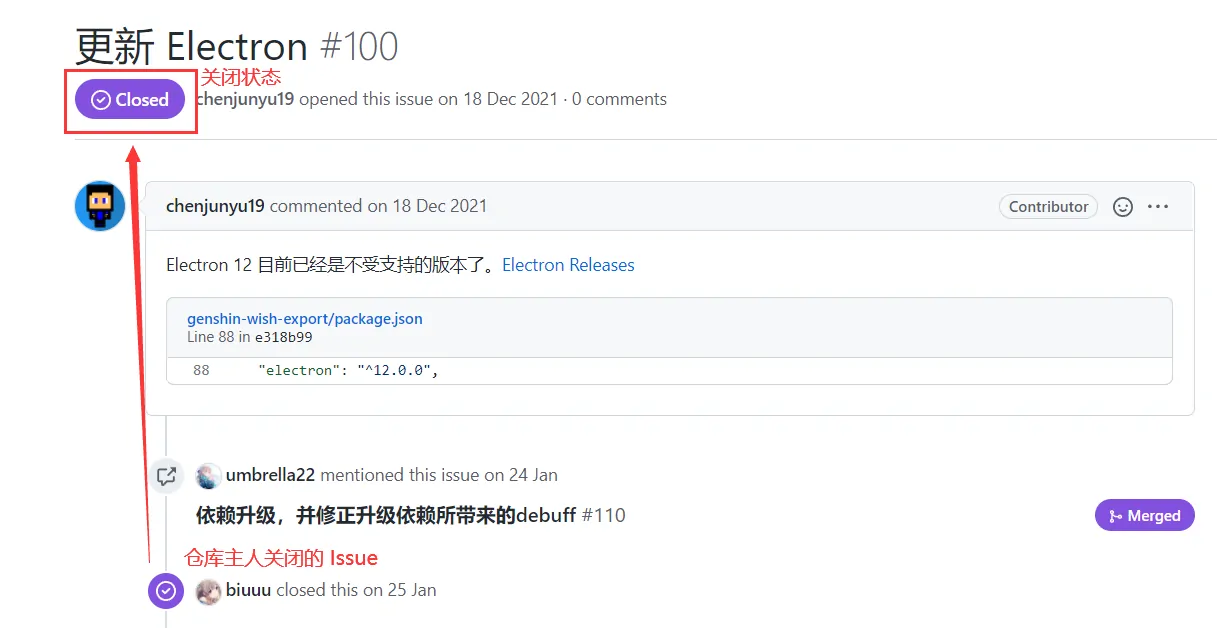
A newly submitted issue is marked as Open, shown in green. When the author fixes the problem or decides the issue is not useful, they may close it. A closed issue is marked as Closed, shown in purple. You can also close an issue you created yourself.
When the repository uses issue templates
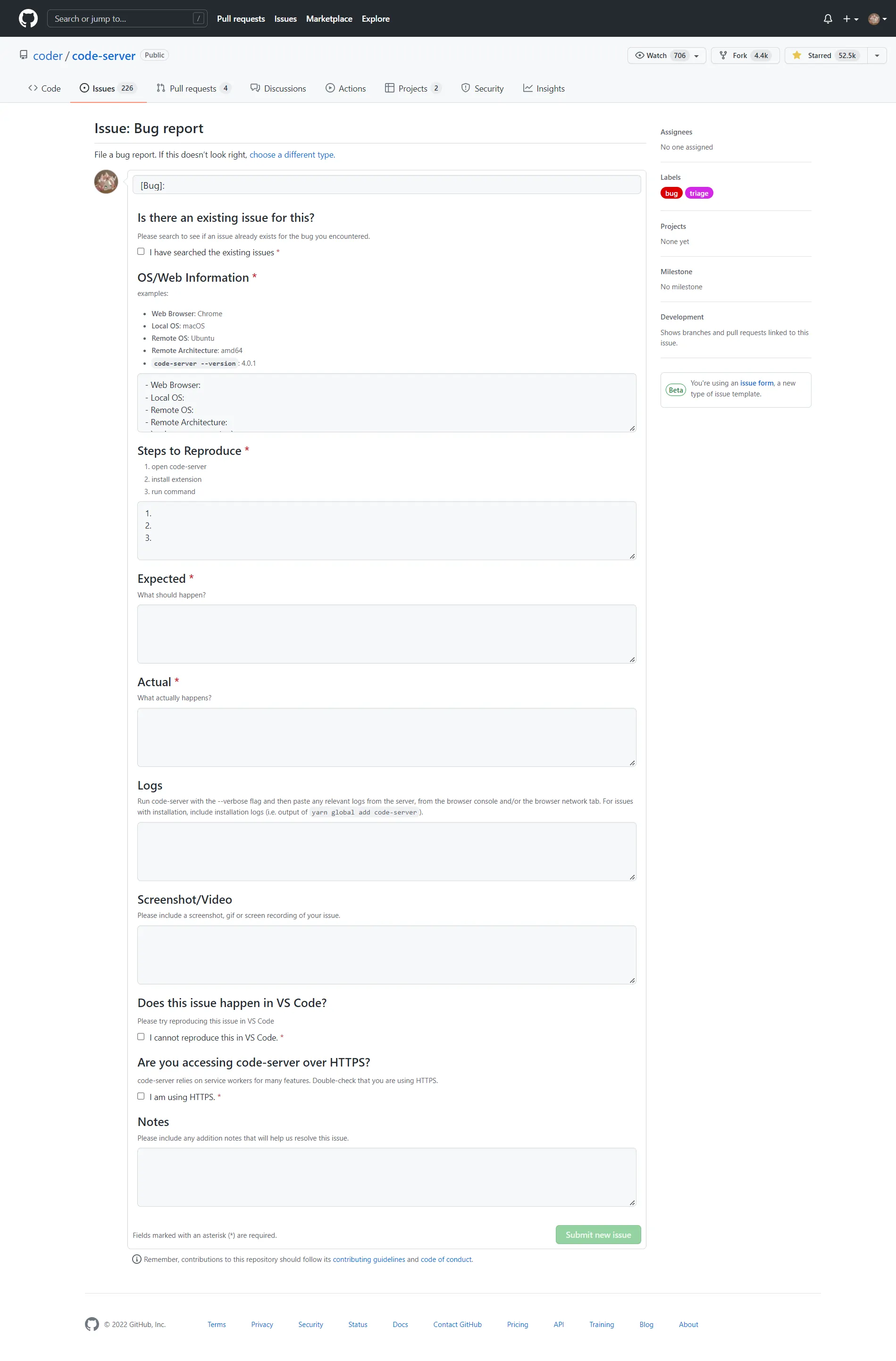
Some repositories provide issue templates. After clicking New issue, you may first see a page asking you to choose a category. Pick the one that matches your situation. The example below uses the coder/code-server repository.
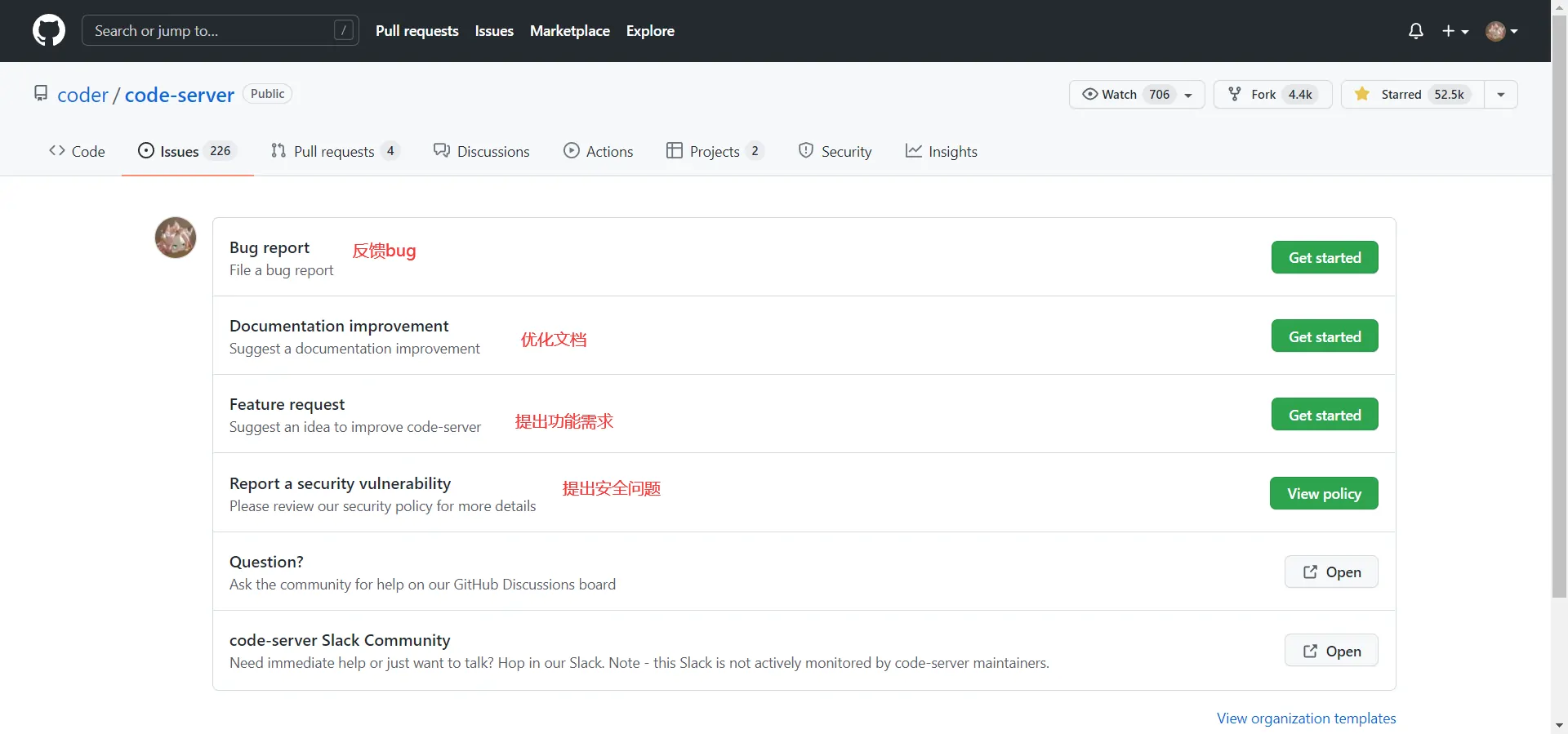
For example, if you choose Bug report, GitHub will open an issue form with a prepared template. Fill it in carefully, then click the button in the lower-right corner to submit it.