Software project development
A software project is not just about writing code. It usually moves through a full chain of planning, design, implementation, testing, release, and maintenance. Each stage has a different purpose, and skipping one often causes problems later.
A typical workflow looks like this:
Requirements analysis ----> High-level design —> Project planning ----> Detailed design—> Coding and testing ----- Project testing ----> Debugging and revision —> Release----> Ongoing maintenance
Requirements analysis
This stage is about identifying what users actually need rather than what the development team assumes they need.
Key tasks include:
- Clarifying the real user requirements and the project?s core functions
- Estimating overall difficulty and checking feasibility
- Producing a requirements document for user confirmation
If this step is vague, later design and implementation will usually drift away from the real goal.
High-level design
Once the requirements are clear, the next step is to think about the system as a whole. This is where the project gets its initial technical shape.
Main work at this stage:
- Defining the overall architecture
- Analyzing technical feasibility
- Choosing the technical direction, frameworks, and models to use
- Creating a high-level design document to guide development
Project planning
A plan turns the design into an executable schedule. It should make clear who does what, in what order, and by what deadline.
This usually includes:
- Determining the order of development tasks
- Building a timeline and defining milestones
- Assigning responsibilities to team members
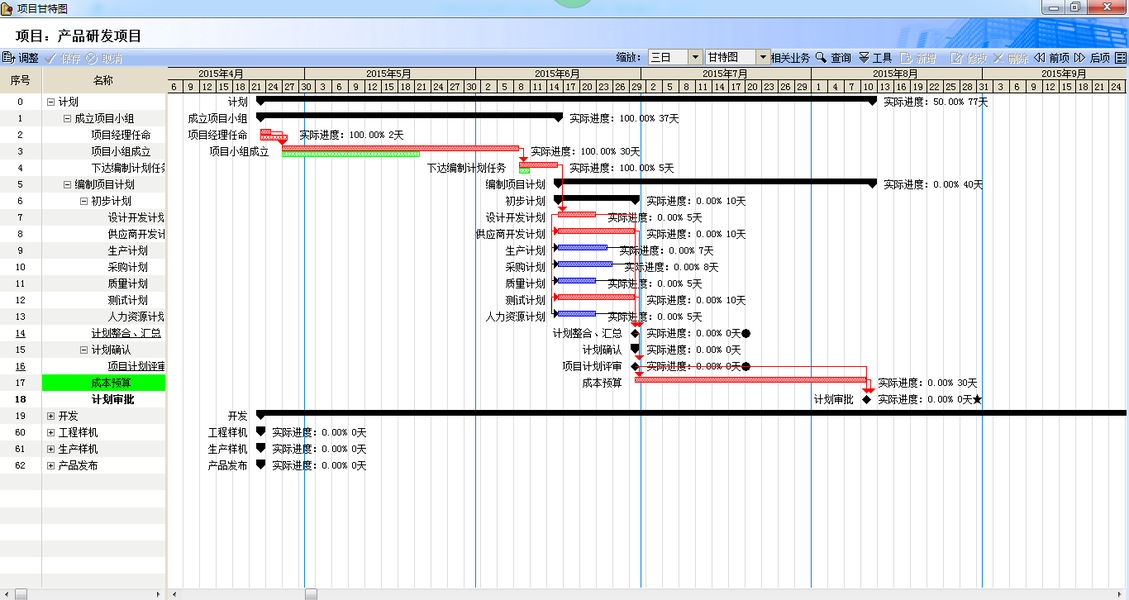
- Creating supporting materials such as Gantt charts and mind maps
Detailed design
High-level structure is not enough for implementation. Detailed design focuses on how each module will actually work.
Typical outputs include a design document covering:
- Programming logic for individual modules
- Idea analysis
- Logical flow
- Functional descriptions
- Technical point explanations
- Database design
- Data structure descriptions
- Notes on key code sections
Coding and basic testing
At this point, development proceeds according to plan.
The main tasks are:
- Writing code based on the detailed design
- Preparing test cases or sample test programs
- Solving technical difficulties as they appear
Project testing
This is broader than basic coding checks. The project is tested against its required functions.
The process typically involves:
- Executing tests based on the test plan
- Producing a test report
- Revising code according to the report
Release
When the project is ready, it is delivered and released.
That usually means:
- Delivering the project to the user for deployment or release
- Writing project documentation or usage instructions
Maintenance
Release is not the end. Real projects need support after delivery.
Maintenance includes:
- Keeping the system running normally
- Iterating and upgrading the project over time
Development concerns that cannot be ignored
Two issues stand out during project execution:
- Delivering on time is a hard requirement
- Conflicts between team members can directly affect implementation
A well-managed process reduces both schedule risk and collaboration friction.
Common tools used in project management
Different parts of development rely on different tools:
- Documentation:
word,ppt,excel,markdown - Flowcharts and structure diagrams:
xmind,visio - Project scheduling and management:
project - Code management:
svn,git
Understanding Git
What Git is
Git is an open-source distributed version control system used to efficiently manage projects and files of all sizes.
Why code management tools matter
A version control tool is useful for several reasons:
- Preventing code loss through backup
- Managing project versions and moving between saved checkpoints
- Letting developers work in separate branches without interfering with one another
- Making it easier to transfer code across multiple devices
Core characteristics of Git
- Git is open source and commonly used in *nix environments, but it can manage many kinds of files
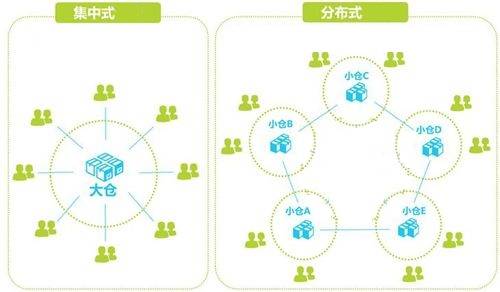
- Git is distributed, unlike centralized tools such as SVN
- Its data management is flexible, sharing is fast, and data safety is stronger
- Branch support is one of its biggest strengths, especially for team collaboration
On Linux, Git can be installed with:
sudo apt install git
How Git works in practice
Basic areas in Git
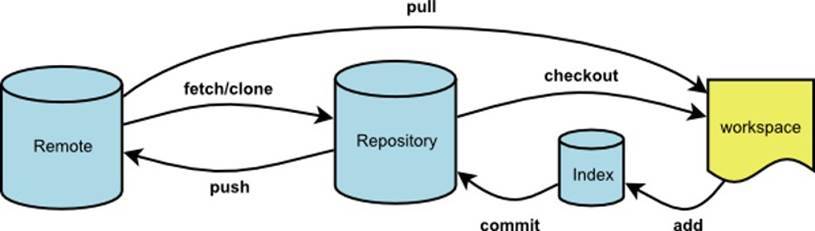
Git work usually involves four areas:
- Working directory: the project folder where files are edited directly
- Staging area: where changes are recorded before commit
- Repository: where committed content is stored locally
- Remote repository: a Git repository hosted on a remote machine
One important rule to remember:
In a local repository, Git expects the working directory and repository to stay in sync as much as possible, and only content in the repository can interact with remote repositories.
Initial Git configuration
Global configuration uses:
git config --global [option]
The configuration file is typically located at:
~/.gitconfig
Set the username
git config --global user.name Tedu
Set the email
git config --global user.email [email protected]
View current configuration
git config --list
Basic Git commands
Initialize a repository
git init
This turns a project directory into a Git-managed directory and creates a local repository.
Check repository status
git status
After initialization, the repository works on the master branch by default. If the working directory and repository differ, Git will report it.
Add changes to the staging area
git add [files..]
Examples:
git add file1 file2
git add *
git add --all
Unstage a file
git rm --cached [file]
Ignore files with .gitignore
A .gitignore file can be added at the root of a Git project to define ignore rules. Because .gitignore itself can be committed, the same rules can be shared by all contributors.
Common patterns include:
fileignores a file namedfile*.aignores all files ending in.a!lib.akeepslib.afrom being ignoredbuild/ignores all files under thebuild/directory
Commit staged changes to the local repository
git commit [file] -m [message]
The -m option adds a message describing the commit. If no file is specified, Git commits all staged files.
Example:
git commit -m 'add files'
View commit history
git log
Restore a file from a commit or from the staging area
git checkout [commit] -- [file]
Example:
git checkout -- a.jpg
If the commit is omitted, Git restores the latest saved version of the file.
Move or delete files
git mv [file] [path]
git rm [files]
These commands change the working directory and also record the operation in the staging area.
Version control in Git
Go back to the previous commit
git reset --hard HEAD^
One ^ means one version back, and more can be used the same way. After the reset, the working directory is automatically synchronized with the selected commit.
Reset to a specific commit
git reset --hard [commit_id]
View all operation history
git reflog
The latest record appears at the top. Using a commit_id, you can move to almost any recorded state.
Create tags
Tags mark important commit points as snapshots, usually for version iterations or releases.
git tag [tag_name] [commit_id] -m [message]
If commit_id is omitted, the tag is attached to the latest commit. The message can also be omitted, though adding one is better.
Example:
git tag v1.0 -m '版本1'
View tags
git tag
git show [tag_name]
Reset to a tag
git reset --hard [tag]
Delete a tag
git tag -d [tag]
Branch management
What a branch is
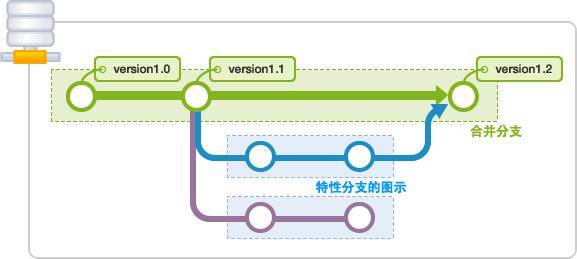
A branch lets each developer build an independent working environment based on existing code, complete separate development tasks, and later merge the results into the main branch.
The practical benefits are clear:
- Development work does not interfere across team members
- Mistakes in one branch are less likely to affect others
Basic branch operations
View branches
git branch
The branch marked with * is the current working branch.
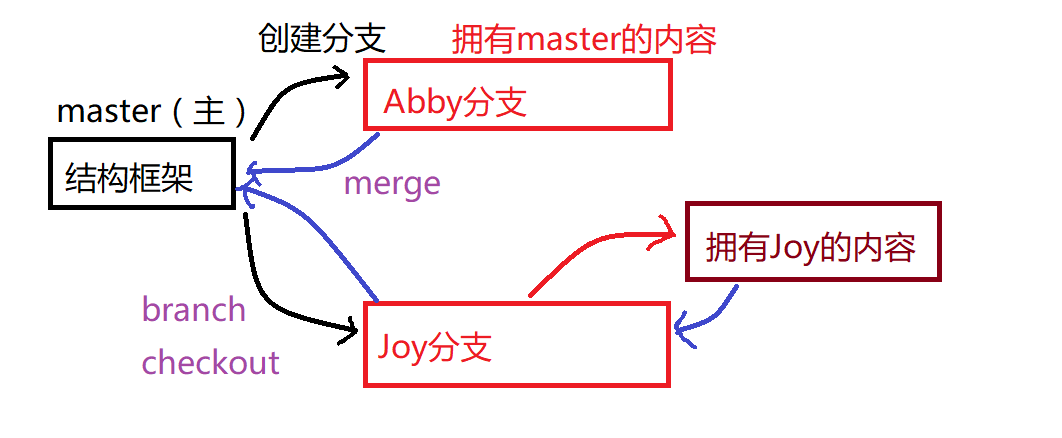
Create a branch
git branch [branch_name]
A new branch created from branch a will inherit all content from a. It is best to create new branches when the source branch is in a clean state.
Switch branches
git checkout [branch]
Branch creation and switching can also be combined in practice.
Merge a branch
git merge [branch]
Delete a branch
git branch -d [branch]
git branch -D [branch]
The uppercase -D forces deletion of a branch that has not been merged.
Branch conflicts
Conflicts are the most troublesome part of merging. They happen when the original parent branch has changed and Git cannot automatically combine changes.
Conflict scenario 1: the original branch adds a new file or changes an existing file
In this case, a merge may produce:
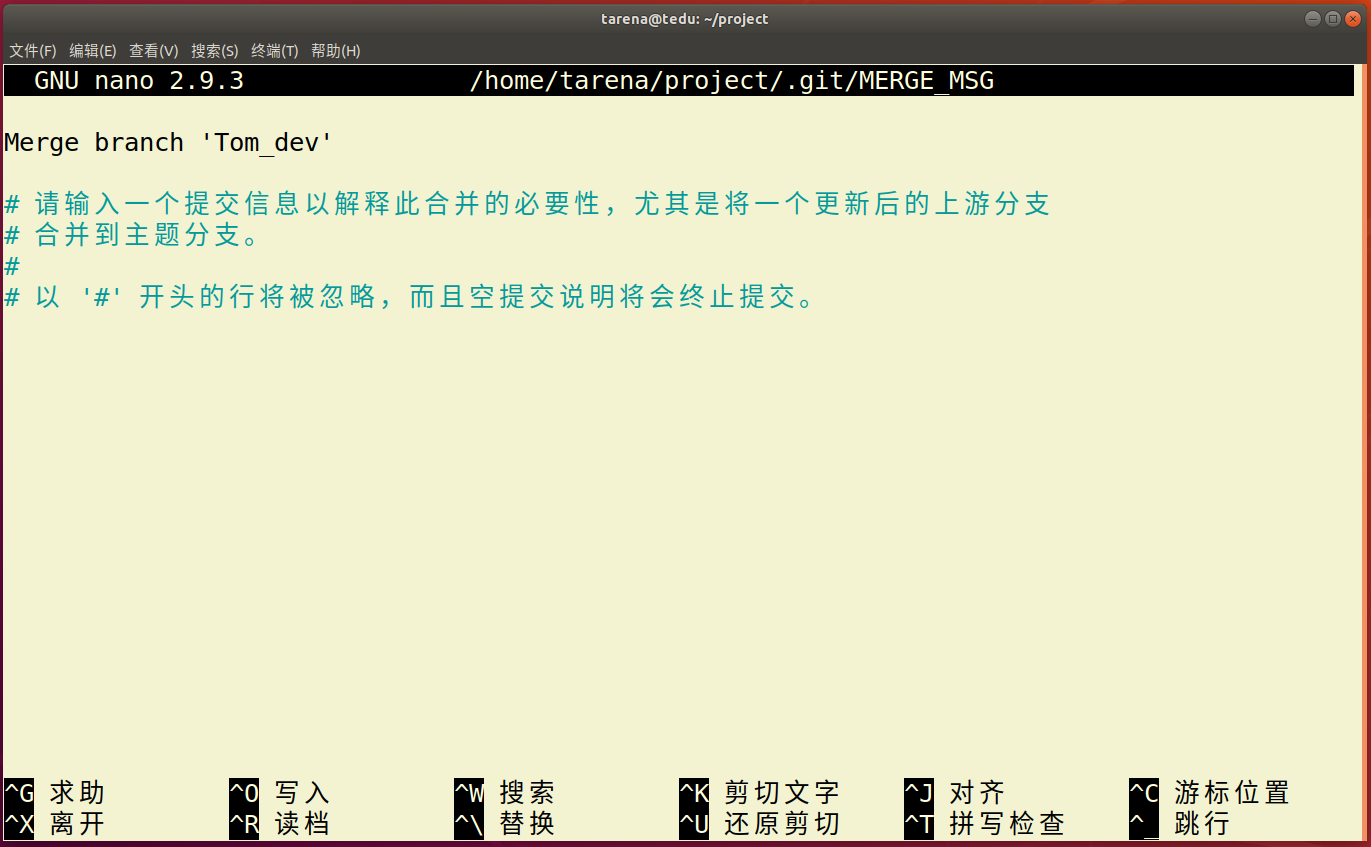
Sometimes the editor only asks for confirmation of the merge message. In that case, press ctrl-o to write, hit Enter, and then press ctrl-x to exit.
Git may also simply prompt for a commit to complete the merge. When that happens, a normal commit is enough. This kind of conflict is usually manageable.
Conflict scenario 2: both child and parent branches modify the same file
This often leads to:

This situation is harder. You usually need to open the file, resolve the conflicting content manually, and then run add and commit to finish the merge.
How to reduce conflict risk
- Keep coupling low across the project so that different branches focus on separate modules
- If someone must modify files from the parent branch, coordinate carefully so that multiple branches are not editing the same file at the same time
Remote repositories: GitHub and Gitee
A remote repository is simply a Git repository hosted on another machine. Since Git is distributed, repository structures are similar across hosts; the main difference is location.
Platforms such as GitHub help developers create and manage remote repositories.
GitHub and Gitee
GitHub is a large open-source project hosting community with a huge number of public projects. Developers can register accounts and create their own repositories there, and Git is the platform?s standard code management tool.
GitHub URL: github.com
Gitee provides a similar service and is widely used as a domestic alternative. Developers can also create repositories there and use them as remote repositories relative to their own computers.
Gitee URL: gitee.com
Getting a project from a remote repository
The general process is simple:
- Search for the project you want
- Copy its Git repository address
- Clone it locally with Git

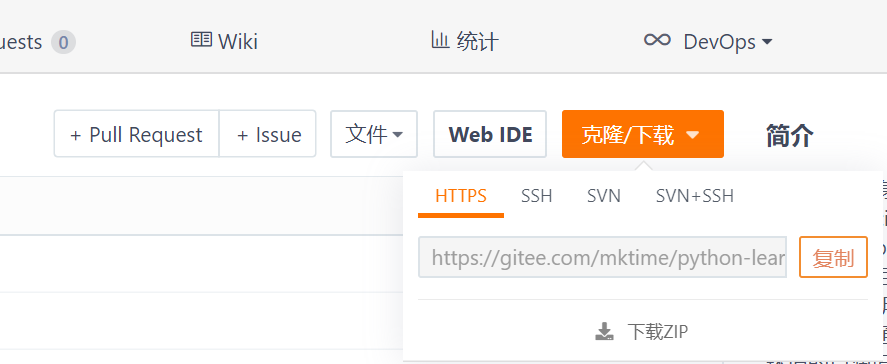
Use:
git clone https://gitee.com/xxxx.git
A few things are worth noting:
- A cloned project is automatically connected to the remote repository and is itself a Git project
- Gitee provides both HTTP and SSH access; SSH is commonly used for your own repositories, while HTTP is often used for cloning other people?s repositories
Creating your own remote repository
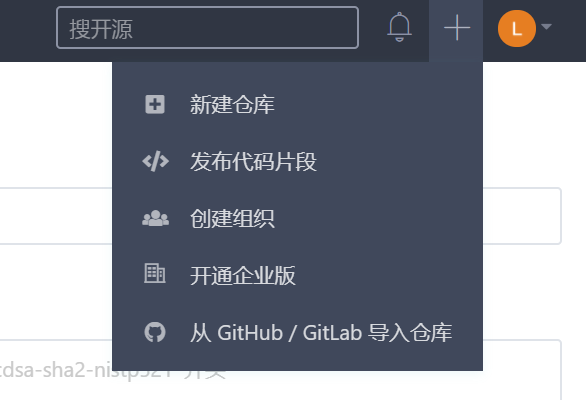
On Gitee, you can create a repository from the new repository option in the upper-right menu, then fill in the required project information.
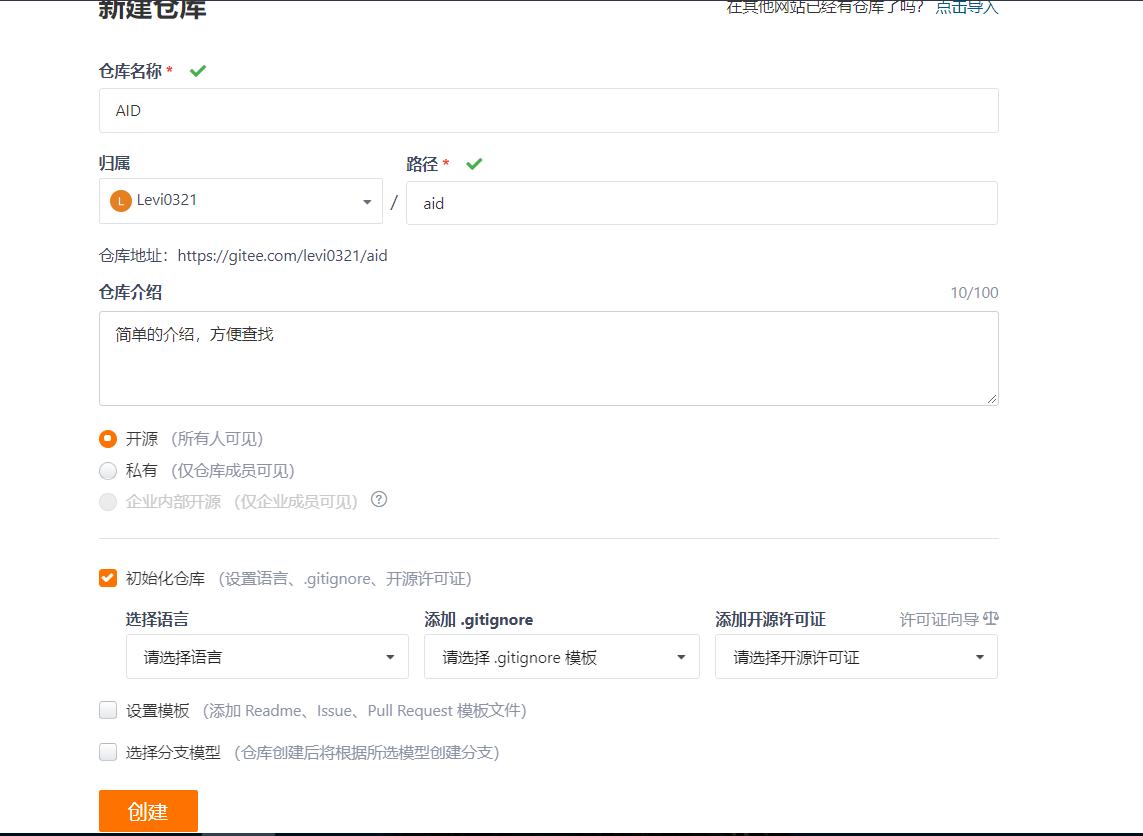
From the perspective of the local machine, the Gitee repository becomes a remote repository connected through remote.
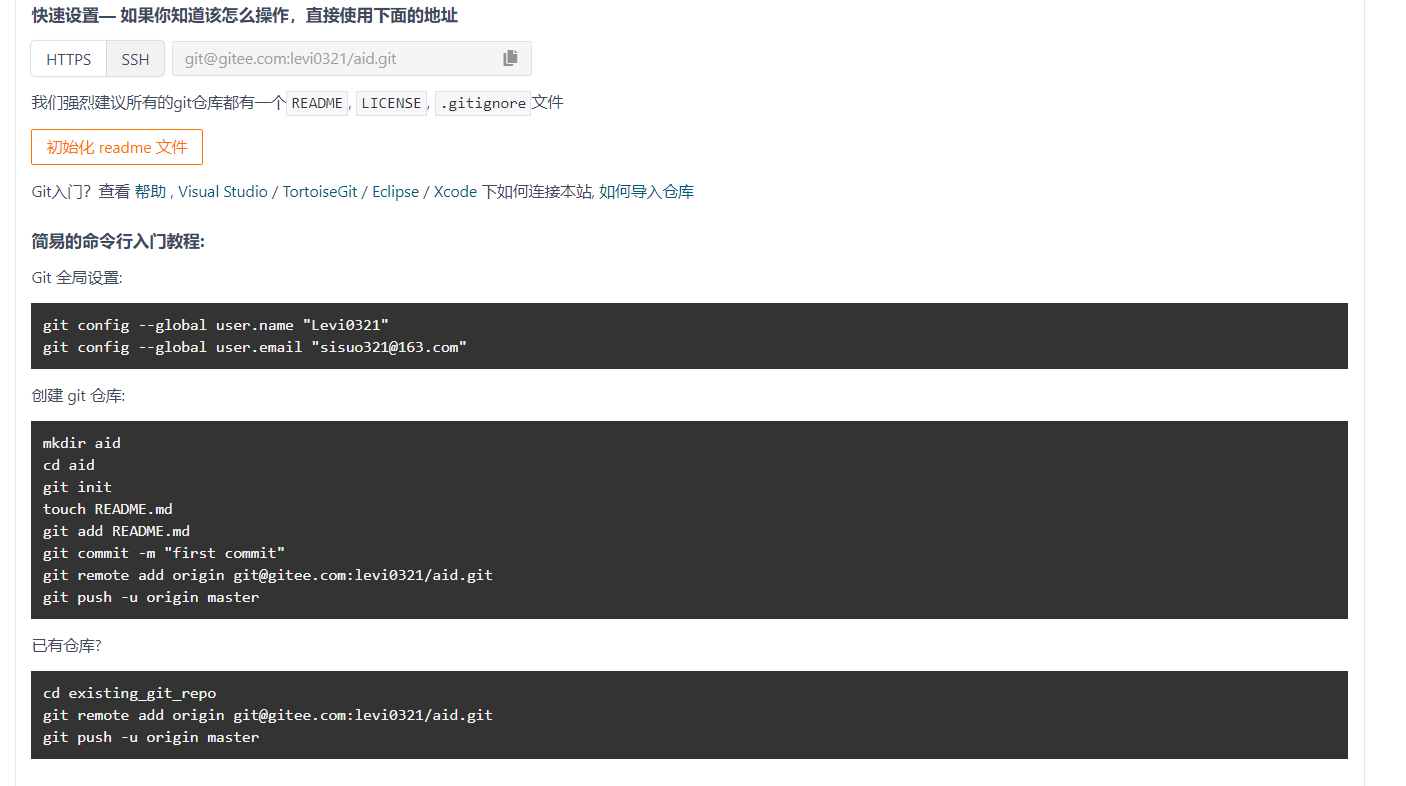
To connect locally using SSH:
git remote add origin [email protected]:levi0321/aid.git
If git remote add origin uses an HTTPS address instead, you will generally need to enter a username and password whenever you push, which is less convenient. That approach is more suitable for temporary computer use.
View remote repository names
git remote
Remove a remote repository connection
git remote rm [origin]
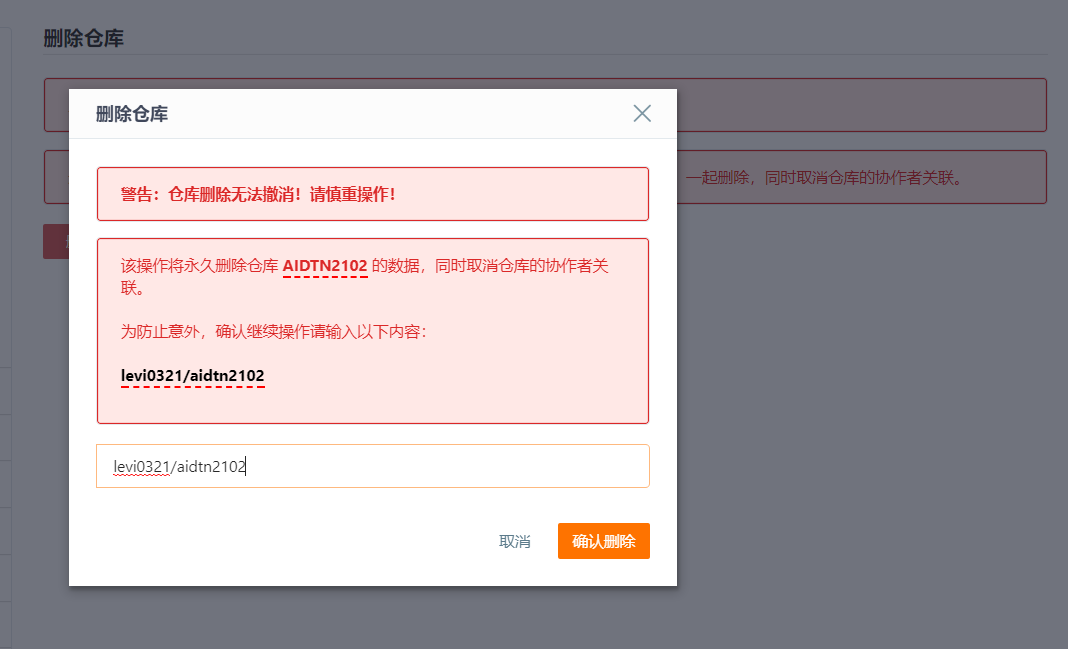
If you need to delete your own repository on Gitee, go to your repositories, open the target repository, enter management settings, and choose the delete option from the side menu.

Commands for working with remote repositories
Push a local branch to the remote repository
git push -u origin master
On the first push, -u links the local branch with the corresponding remote branch.
To delete a branch on the remote side:
git push origin [:branch]
Push code updates
git push
Use this when local code changes need to be uploaded to the remote repository.
Force push an older local version
git push --force origin
This is used when the local version is older than the remote version but still needs to overwrite it forcibly.
Pull code from the remote repository
git pull
For day-to-day collaboration, this is one of the most frequently used commands. It keeps the local repository synchronized with the remote state before new development or before merging shared work.