FileBrowser at a glance
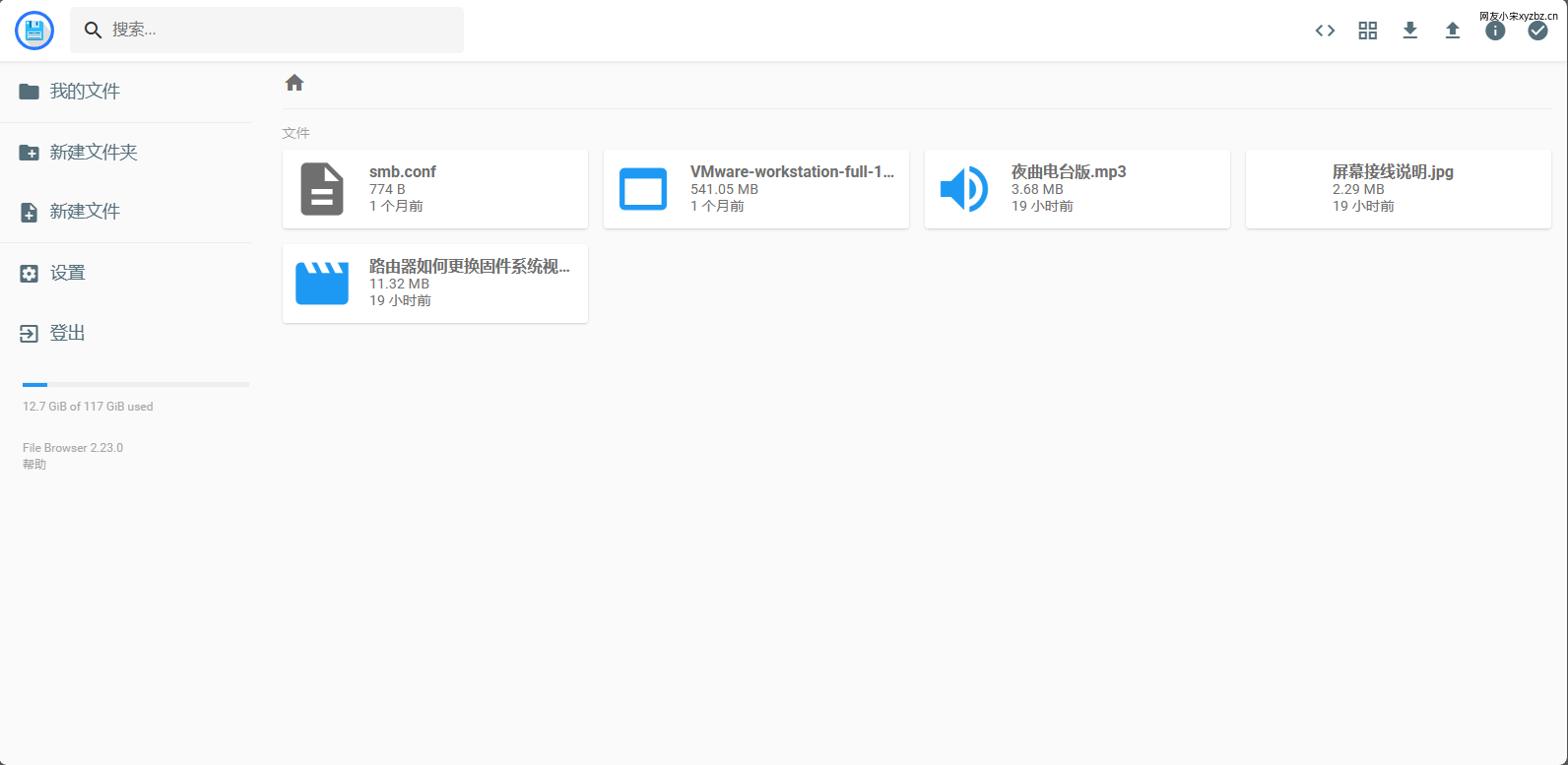
FileBrowser provides a web-based file management interface for a chosen directory. From the browser, you can upload, delete, preview, rename, and edit files. It also supports multiple users, and each user can be assigned a separate directory, so it can work well as a small standalone personal cloud.
What stands out most is how lightweight it is. The interface is very minimal, and on a Raspberry Pi it feels much less demanding than many heavier self-hosted storage solutions. After deployment, it can also be exposed externally through FRP, and in actual use the overall responsiveness remains quite good.
Useful references:
- Docker Hub: https://hub.docker.com/r/filebrowser/filebrowser
- Official installation guide: https://filebrowser.org/installation
- Official demo: https://demo.filebrowser.org/
Username and password:demo
Two deployment options
Installing through CasaOS
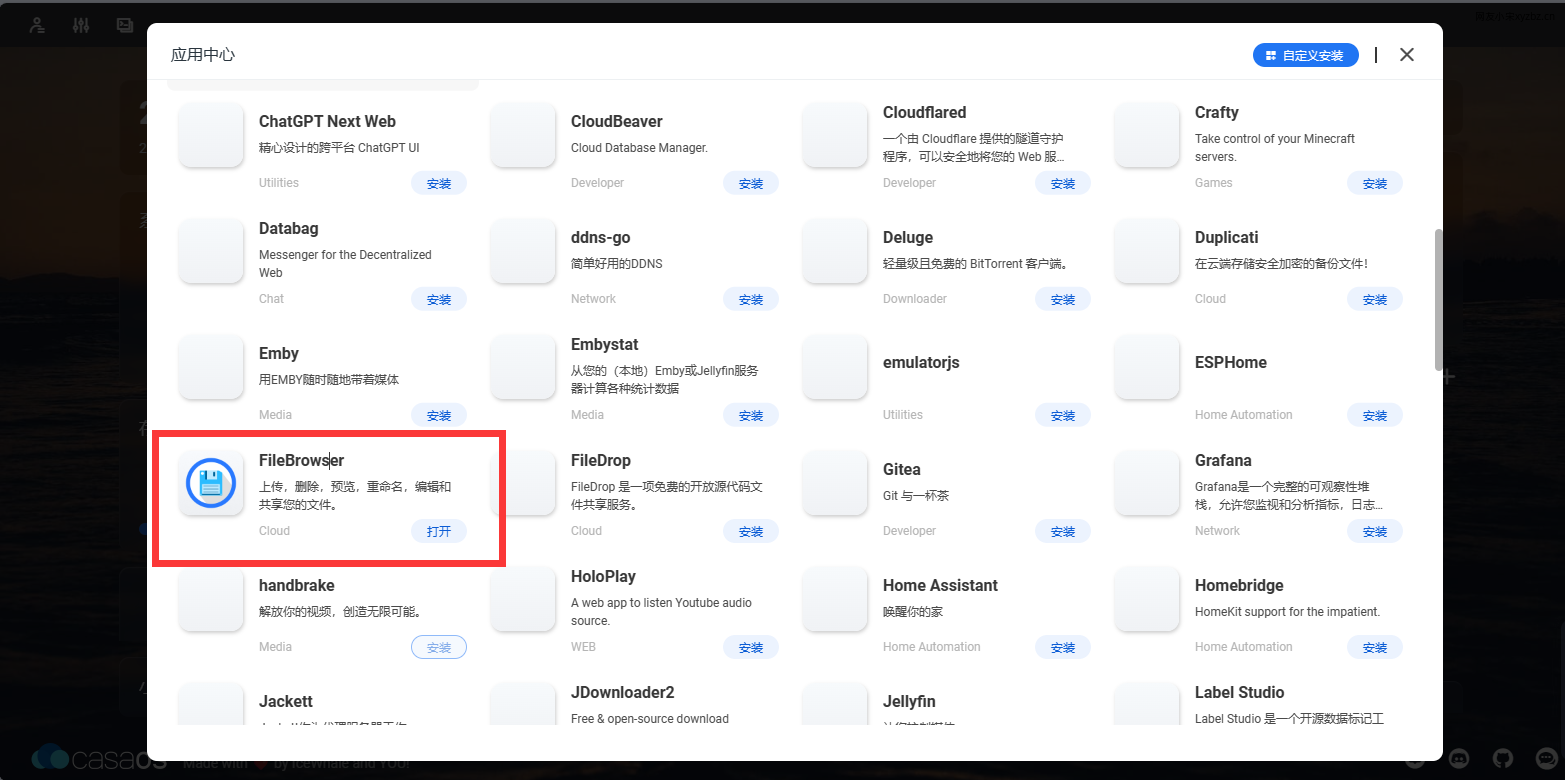
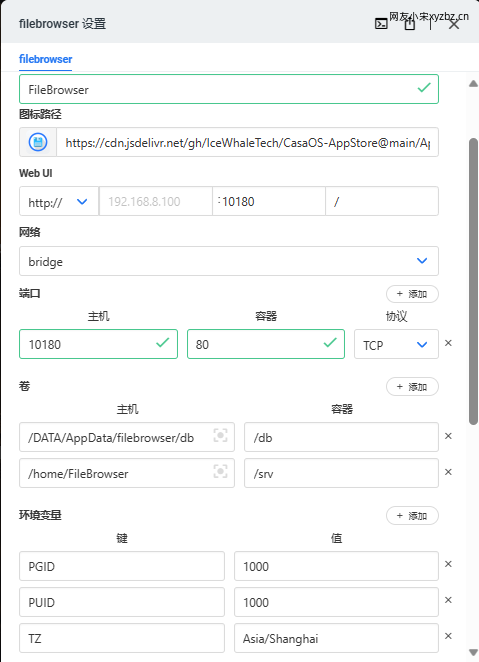
If the device already has CasaOS installed, the easiest route is to install FileBrowser directly from the app store. The main things to check during setup are the mapped storage directory and the port you want to use.
Installing with Docker commands
If CasaOS is not installed, FileBrowser can be started directly with Docker. Below is the official example command:
docker run \
    -v /path/to/root:/srv \
    -v /path/to/filebrowser.db:/database/filebrowser.db \
    -v /path/to/settings.json:/config/settings.json \
    -e PUID=$(id -u) \
    -e PGID=$(id -g) \
    -p 8080:80 \
    filebrowser/filebrowser:s6
A Raspberry Pi test command is also shown below:
  docker run \
    -v /home/filebrowser/to:/srv \
    -v /home/filebrowser/db:/db \
    -u $(id -u):$(id -g) \
    -p 10180:80 \
    filebrowser/filebrowser:v2.23.0
When using either command, make sure to change the local path mapped to /srv, and adjust the exposed port as needed.
The first example above is a direct copy of the official command. If it throws an error on a Raspberry Pi, the parameters may need some adjustment depending on the environment.
Once the container is up, the service can be accessed through IP + port. The default username and password are both admin. After logging in, you can go into settings to change the password and switch the language.
Exposing it to the internet with FRP
A local deployment can be published externally with FRP, which requires a cloud server on the public internet side.
One issue that came up when using FRP together with reverse proxying was file uploads larger than 50 MB failing with a 413 error from the public side. The cause was not FileBrowser itself, but the Nginx upload size limit. To fix it, edit nginx.conf and increase client_max_body_size according to your needs.

Real-world speed notes
The speed tests were done in the evening, which is typically a busy network period. Because the remote server was located on the US West Coast, transfer performance was affected by distance and line conditions even without an artificial speed cap.
Upload speed stayed around 1 MB/s most of the time.
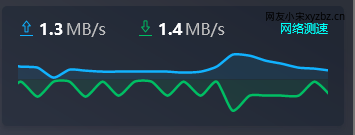
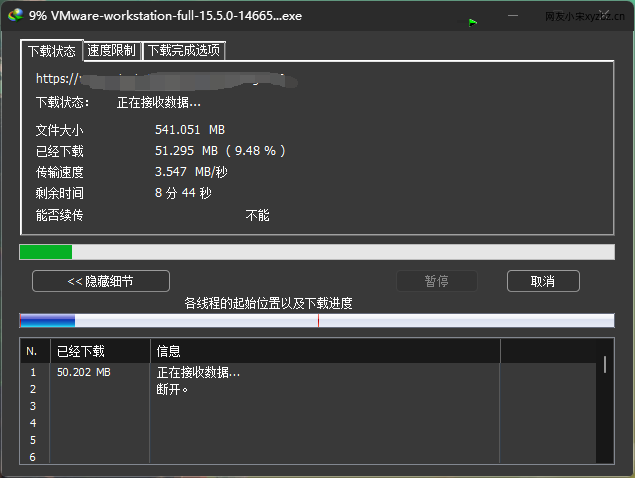
For download testing, a file was uploaded first and then shared through a download link. The file was downloaded with IDM. The speed held fairly steady at around 3 MB/s, with peaks reaching about 6 MB/s. On a 100 Mbps broadband connection, the theoretical upper limit would be around 10 MB/s.
How it feels on a Raspberry Pi
As a lightweight file-sharing tool, FileBrowser runs steadily on a Raspberry Pi and has lower hardware demands than many other self-hosted cloud storage options. That makes it a practical choice for people who want simple file access and sharing without relying heavily on a full-featured network drive platform.
It does have limitations. Some video and media formats cannot be played directly in the browser, so those files may need to be downloaded locally first. Even so, for a small and simple personal cloud, it is still well worth trying.