If you want your automation work to go smoothly, the first step is getting the tools in place.
This setup uses Scoop as the package manager on Windows. If Scoop is not installed yet, that needs to be done first before continuing.
The environment here covers four pieces:
- installing PyCharm Community Edition
- installing Python
- installing Selenium with
pip - installing a WebDriver
Installing PyCharm Community Edition
PyCharm is available from Scoop’s extras bucket. If that bucket has not been added yet, run:
scoop bucket add extras
Search for PyCharm
Use the following command:
scoop search pycharm
The search results show two editions:
pycharm-professionalpycharm
The difference is straightforward: the Professional edition is paid, while the Community edition is free. For this setup, the Community edition is the one being installed.
Install PyCharm
Run:
scoop install pycharm
After the installation completes successfully, PyCharm is ready to use.
Installing Python
Search for Python
Use:
scoop search python
The results usually include multiple entries. Among them:
anaconda3mambaforgeminiconda3winpython
These are all Python distributions rather than the standard Python package itself. Other entries such as fontforge and paraview only appear because they include Python-related dependencies.
For a clean automation testing environment, install the regular python package.
Install Python
Run:
scoop install python
During installation, Scoop may also install supporting components automatically. Once the process finishes, pay attention to the note shown in the terminal: you need to run the following file so other applications and third-party installers can locate Python correctly:
C:\Users\WDAGUtilityAccount\scoop\apps\python\current\install-pep-514.reg
Confirm that Python is installed
Check the version:
python --version
If the installation succeeded, the output should be:
Python 3.12.0
Installing Selenium with pip
Once Python is available, install Selenium through pip:
pip install selenium
If you need a specific release, use this form instead:
pip install selenium==版本号
That will install Selenium along with the packages it depends on.
Installing a WebDriver
A WebDriver is the browser driver Selenium uses to control a browser. It handles actions such as opening pages, clicking elements, and entering text.
Selenium supports multiple browsers, including Chrome, Firefox, and Edge. Each browser needs its matching driver.
Here, Chrome is used as the example.
Search for ChromeDriver
Run:
scoop search chrome
Among the results, you should see chromedriver listed.
Install ChromeDriver
Run:
scoop install chromedriver
Once that finishes, the driver is installed.
Verify that the WebDriver works
The quickest way to confirm the setup is with a minimal Selenium script:
from selenium import webdriver

driver = webdriver.Chrome()
driver.get("http://baidu.com")
input() # 防止程序退出
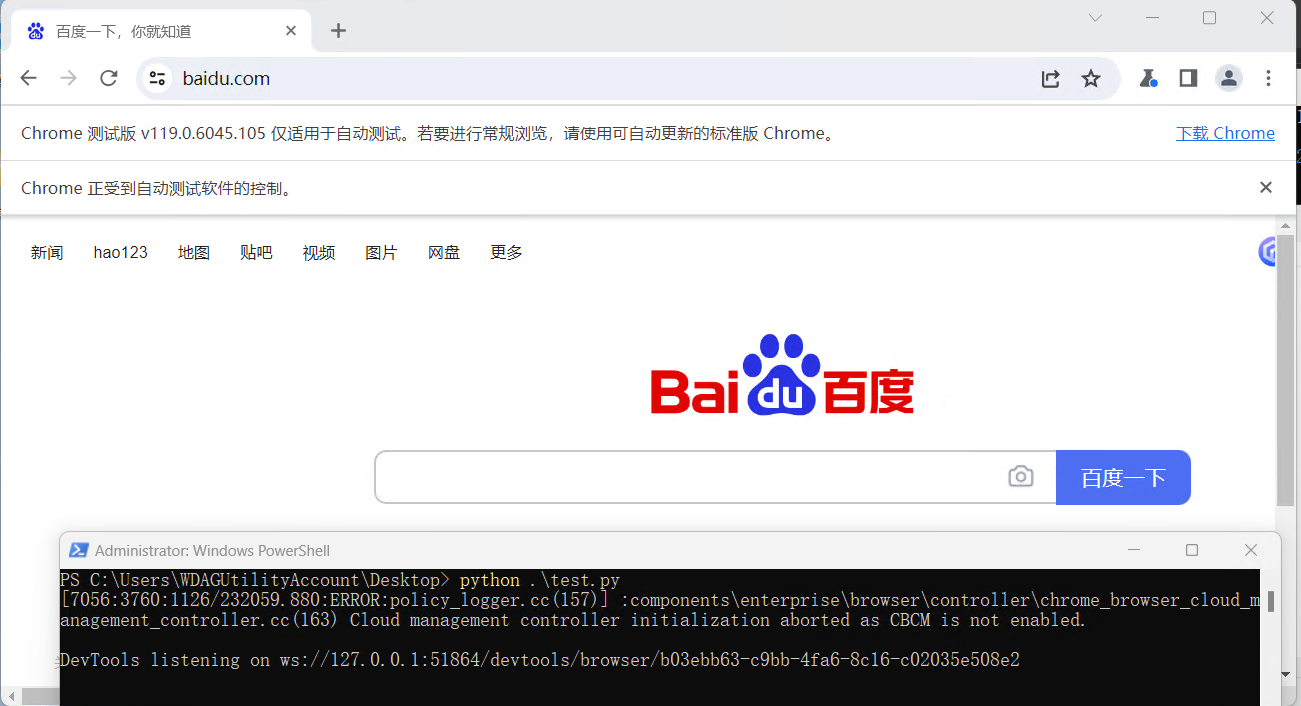
Run the script. If Chrome opens and loads the Baidu homepage, then ChromeDriver has been installed correctly and Selenium can use it without issue.