When working with Docker, image-related commands are among the first things you need to know. That includes checking Docker itself, listing local images, searching for images, pulling them, and removing the ones you no longer need.
Basic help commands
Before managing images, it helps to know a few commands for checking your Docker environment and viewing available options.
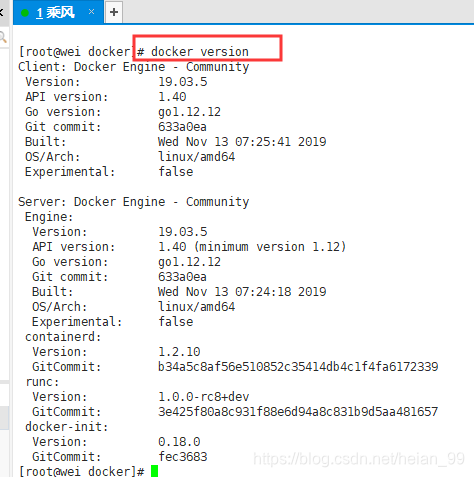
docker version
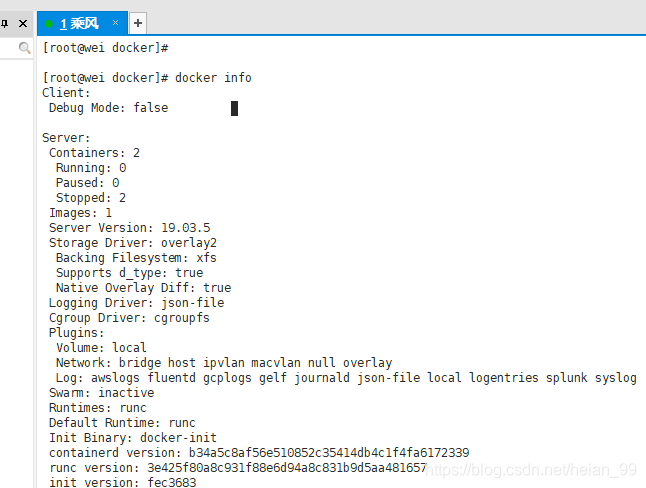
docker info
docker --help
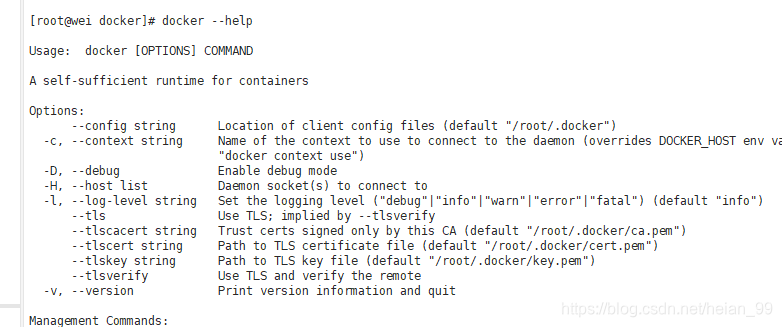
docker version: shows Docker version information.docker info: displays more detailed environment information.docker --help: lists supported commands and usage.
Working with images
List images on the local host
docker images

The main columns shown by this command are:
- REPOSITORY: the image repository source
- TAG: the image tag
- IMAGE ID: the image ID
- CREATED: when the image was created
- SIZE: the image size
Common options:
-a: list all local images, including intermediate image layers

-q: display only image IDs

--digests: show image digest information

--no-trunc: show full image information

A single repository can have multiple tags, and each tag usually represents a different version of that image. Docker identifies them with the format REPOSITORY:TAG.
If you do not specify a tag and use only something like ubuntu, Docker will use ubuntu:latest by default.
Search for an image
You can search directly from the command line, or browse images on the Docker Hub website:
https://hub.docker.com
Command format:
docker search [OPTIONS] 镜像名字

Useful options:
--no-trunc: show the full image description

-s: list only images whose star count is not lower than the specified value
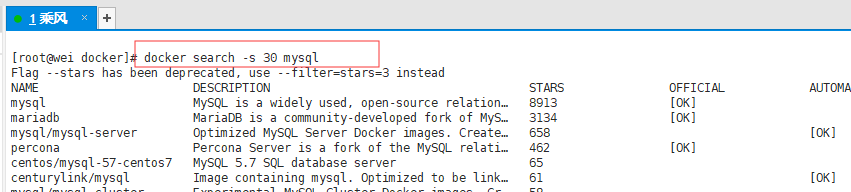
--automated: show only images built with automated builds

Pull an image
To download an image locally:
docker pull 镜像名字[:TAG]
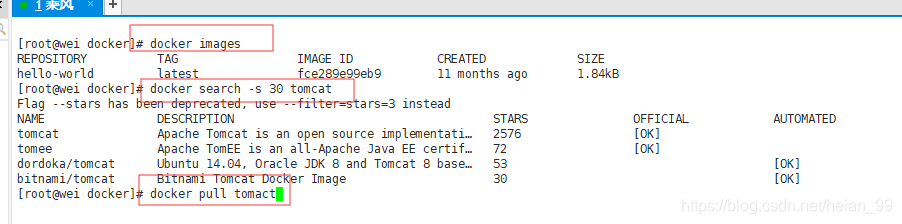
For example:
docker pull tomcat
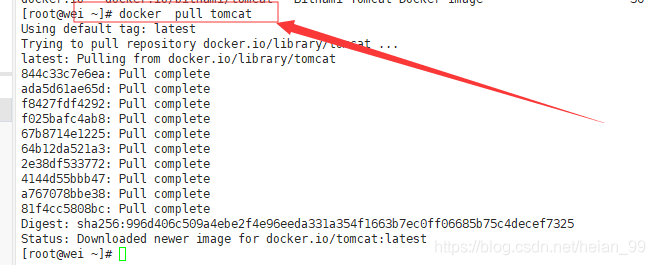

If no tag is specified, Docker will pull the latest version by default.
Remove images
To delete images, use docker rmi.
docker rmi 某个XXX镜像名字ID
Remove a single image
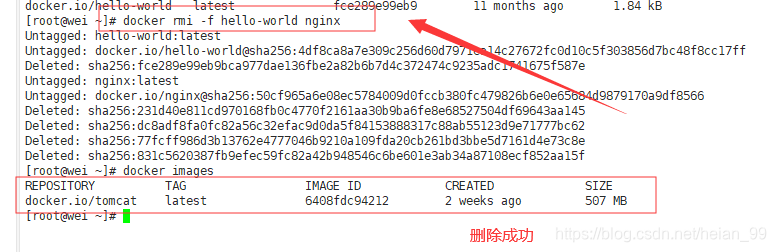
docker rmi -f 镜像ID

Remove multiple images
docker rmi -f 镜像名1:TAG 镜像名2:TAG
Example:
docker rmi -f hello-world nginx
Remove all images
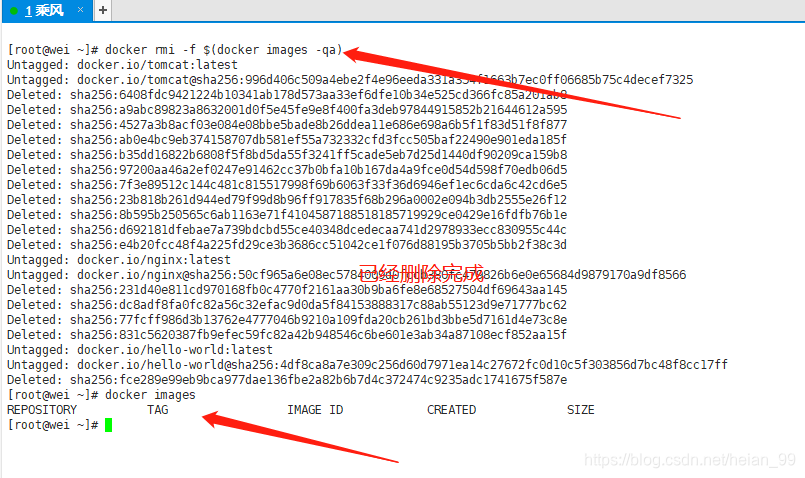
docker rmi -f $(docker images -qa)