If you use the SSR client on Windows, you have probably run into the pop-up saying that local port 1080 is already occupied when the client starts. It is a small error, but it is extremely irritating.
In some cases, it only shows up after the computer has been powered off, shut down, or restarted. Sometimes waiting a few minutes and launching SSR again makes the problem disappear on its own. But if the message clearly says the port is being used, the more sensible approach is to find out what is actually taking it.

A practical fix tested on Windows is to identify the process using port 1080, stop it, and then restart SSR.
Method 1: Find the process that is occupying port 1080
SSR uses 1080 as its local port by default, so the first step is to check which program has already taken that port.
Press Windows + R to open the Run dialog, then enter the following command:
netstat -aon|findstr "1080"
Press Enter. In the result, look for the PID corresponding to the occupied port. The last number shown is the PID.
Next, open Task Manager, switch to the Services tab, and check the PID column to match the process. Once you identify it, end that process and then launch SSR again.

The whole idea is basically: search for it, find it, kill it.
From actual use, quite a few common applications and background processes seem to like grabbing port 1080. Why they do that is another question entirely. The reason is often unclear, the purpose is unclear, and it is hard not to wonder why this particular port gets used so casually.
Method 2: Change SSR’s local port
If you do not want to keep chasing whatever is taking port 1080, another straightforward workaround is to change SSR’s local listening port to something else.
Step 1
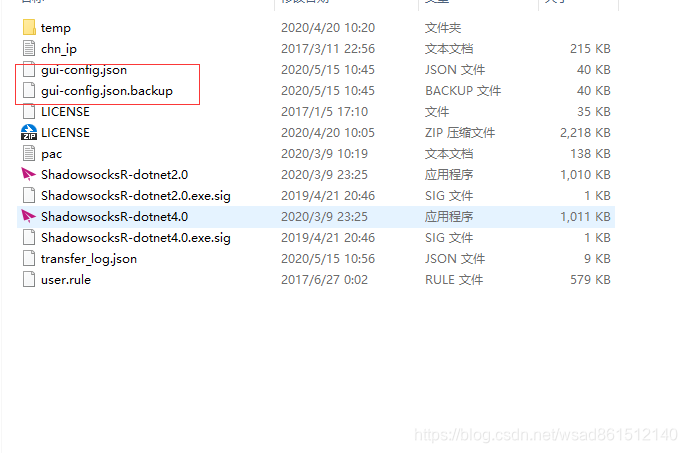
Step 2
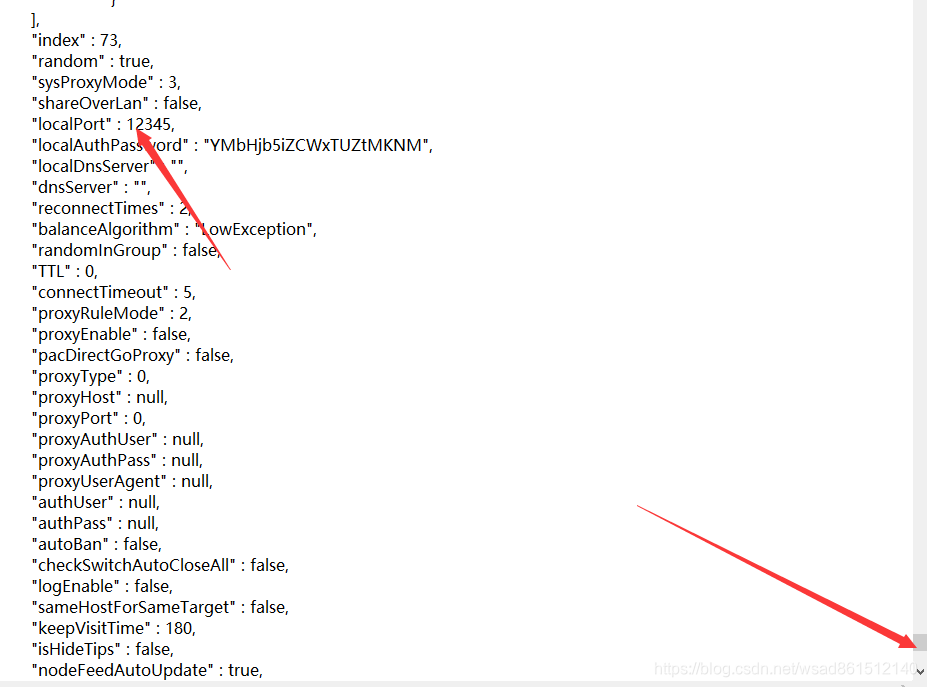
Here, change 1080 to 12345. Both the main file and the backup file need to be modified. After that, reopen SSR.
If the conflict keeps coming back after reboots, this second approach is often the simpler long-term fix.