Selenium gives you eight built-in locator strategies, but they are not interchangeable from one page to the next. The right choice depends on how the HTML is structured, whether an attribute is stable, and whether you need one match or all matches. In current Selenium, the older find_element_by_* methods are deprecated; use find_element(By.XX, '') instead.
The eight strategies are ID, name, class name, tag name, link text, partial link text, XPath, and CSS selector.
Locating by ID
element = driver.find_element(By.ID, 'id')
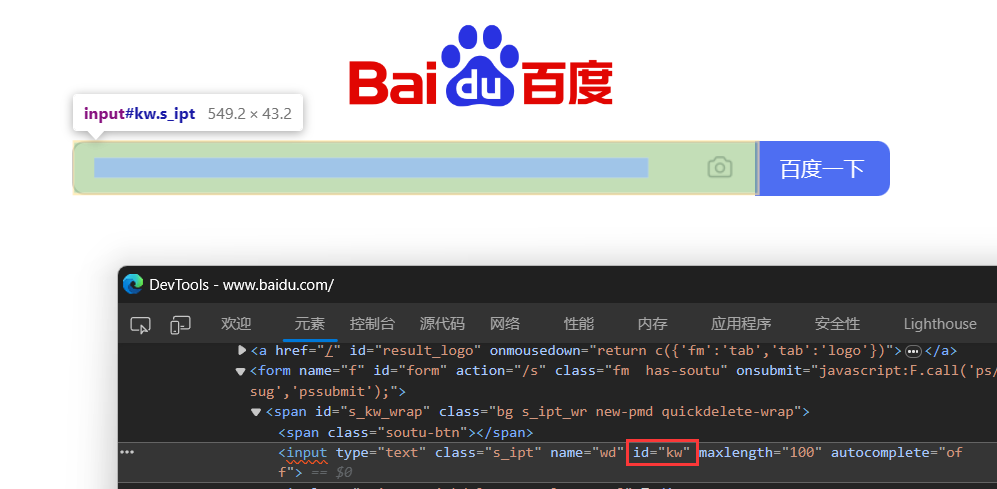
An ID is normally unique, which makes this the fastest locator. You can find the ID in the page source or in the browser developer tools. In HTML it looks like this:
<div id="uniqueId">这是一个示例元素</div>
Here uniqueId is the ID, so the locator becomes:
element = driver.find_element(By.ID, 'uniqueId')
On Baidu's home page, for example, the search box has the ID kw.
Locating by Name
element = driver.find_element(By.NAME, 'name')
The name attribute is common on form elements:
<input type="text" name="username" />
With username as the name, use:
element = driver.find_element(By.NAME, 'username')
Baidu's search box has the name wd.

Locating by Class Name
element = driver.find_element(By.CLASS_NAME, 'class_name')
Unlike id, a class value does not have to be unique. Many elements can share the same class, often to receive the same styling or to be grouped into the same category.
<div class="box">这是一个样式为box的元素。</div>
<p class="paragraph">这是一个样式为paragraph的段落。</p>
<div class="box">这是另一个样式为box的元素。</div>
Both div elements use the class box; the p element uses paragraph. A developer may still keep class values unique when that makes element selection easier, but Selenium only requires a match. This locator returns the first element with class box:
element = driver.find_element(By.CLASS_NAME, 'box')
Locating by Tag Name
element = driver.find_element(By.TAG_NAME, 'tag_name')
This strategy selects by HTML tag, such as <div>, <p>, or <a>:
<div>This is a div element.</div>
<p>This is a paragraph element.</p>
<a href="#">This is a link element.</a>
The corresponding locators are:
element_div = driver.find_element(By.TAG_NAME, 'div')
element_p = driver.find_element(By.TAG_NAME, 'p')
element_a = driver.find_element(By.TAG_NAME, 'a')
find_element returns only the first matching element.
Locating by Link Text
element = driver.find_element(By.LINK_TEXT, 'link_text')
This is used for anchor elements, meaning links on the page:
<a href="https://www.example.com">Link</a>
To select it by its visible text:
element_link = driver.find_element(By.LINK_TEXT, 'Link')
Link text matching is case-sensitive, so the text must match exactly. If several links have the same text, only the first match is returned.
Locating by Partial Link Text
Partial link text works like link text but matches only part of the visible link text:
element = driver.find_element(By.PARTIAL_LINK_TEXT, 'Partial Link')
This returns the first link containing Partial Link. It is also case-sensitive, and the supplied fragment must match part of the displayed text exactly. This is useful when link text is generated dynamically or when only part of the text matters.
Locating by XPath
element = driver.find_element(By.XPATH, 'xpath')
XPath can address elements through hierarchy, attributes, and text content. When an XPath expression contains double quotes, put the whole expression in single quotes in Python.
Absolute path:
element = driver.find_element(By.XPATH, '/html/body/div[1]/p[2]')
Relative path with an attribute condition:
element = driver.find_element(By.XPATH, '//div[@class="example"]/p')
Text content:
element = driver.find_element(By.XPATH, '//*[text()="Click me"]')
Attribute value:
element = driver.find_element(By.XPATH, '//*[@id="exampleId"]')
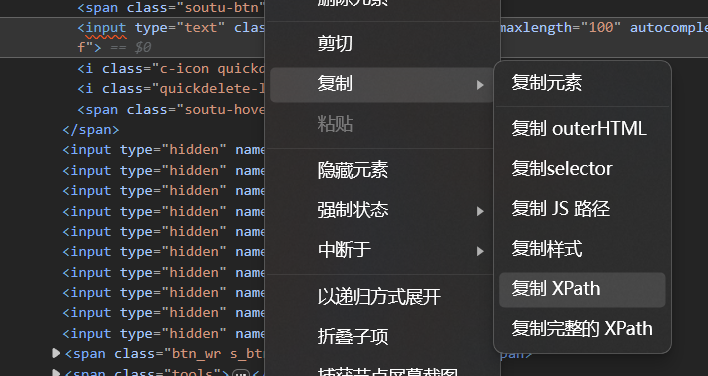
XPath is flexible, but expressions should fit the specific page. Browser developer tools can help: right-click the element, then choose Copy -> Copy XPath.
Locating by CSS Selector
element = driver.find_element(By.CSS_SELECTOR, 'css_selector')
CSS selectors provide a compact way to match elements by ID, class, tag, attributes, and hierarchy.
By ID:
element = driver.find_element(By.CSS_SELECTOR, '#exampleId')
By class:
element = driver.find_element(By.CSS_SELECTOR, '.exampleClass')
By tag:
element = driver.find_element(By.CSS_SELECTOR, 'div')
By attribute:
element = driver.find_element(By.CSS_SELECTOR, '[name="exampleName"]')
By parent-child relationship:
element = driver.find_element(By.CSS_SELECTOR, 'div > p')
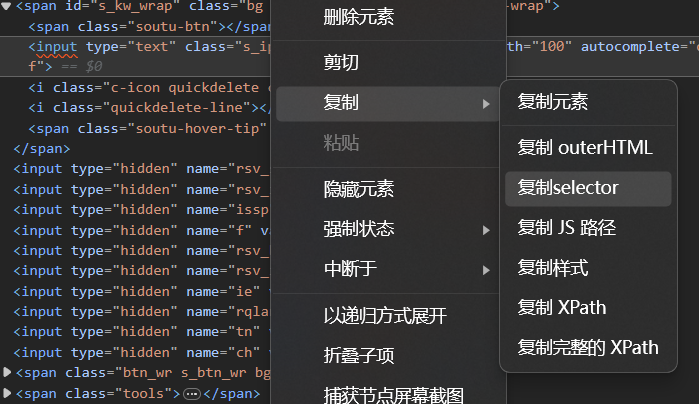
In developer tools, right-click the element and choose Copy -> Copy selector.
Finding Multiple Elements
Use find_elements to retrieve all matches:
elements = driver.find_elements(By.XX, '')
The result is a list. You can iterate over it:
elements = driver.find_elements(By.XX, '')
for element in elements:
    print(element.text)
Each item is a WebElement object with properties such as tag_name, text, id, and the get_attribute(name) method.
Working with WebElement Objects
A WebElement represents a single element on the page. Its properties and methods are how you inspect and interact with that element.
Properties:
idreturns the element ID:element_id = element.idtag_namereturns the tag name:tag_name = element.tag_nametextreturns the visible text:text_content = element.textget_attribute(name)returns an attribute value:attribute_value = element.get_attribute('class')
Methods:
click()simulates a click:element.click()send_keys(value)sends text to an input or editable element:element.send_keys("Hello, Selenium!")clear()clears an input:element.clear()is_displayed()checks visibility:is_visible = element.is_displayed()is_enabled()checks whether the element is enabled:is_enabled = element.is_enabled()is_selected()checks selection state, useful for checkboxes and radio buttons:is_selected = element.is_selected()find_element(by, value)finds a child element:child_element = element.find_element(By.XPATH, '//div[@class="example"]')find_elements(by, value)finds all matching child elements:child_elements = element.find_elements(By.TAG_NAME, 'p')
These are only some of the available WebElement APIs; the exact property or method depends on what the page element needs to do.