An external hard drive that suddenly refuses to open and asks to be formatted is a common but alarming problem. The most important rule is simple: do not format it if the data matters. Formatting creates a new file system and may overwrite or damage the existing directory information, making recovery harder.
External drives are widely used for photos, videos, work documents, study materials, backups, and file transfers. Because they are often moved between computers and connected through USB, file system errors, connection problems, and even physical disk issues can appear without much warning. A drive may work normally one day and then show a formatting prompt the next time it is plugged in.
What the problem usually looks like
When you try to open the drive in Windows, a dialog may appear saying something like:
- “The disk in drive J is not formatted. Do you want to format it now?”
- “You need to format the disk in drive K: before you can use it. Do you want to format it?”
The window usually offers two choices: Format disk and Cancel.
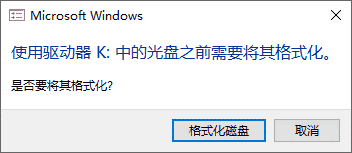
Sometimes the message is different, but the result is the same: the partition cannot be opened. Other common errors include:
G:\ is not accessible. The file or directory is corrupted and unreadable.G:\ is not accessible. The volume does not contain a recognized file system.The parameter is incorrect.
No matter which message appears, avoid clicking Format disk before recovering important files. Also avoid unnecessary repair attempts such as disk checking if the files are valuable, because write operations may further change the damaged file system.
Recover the data first
For this type of failure, data recovery should come before repair. A recovery utility such as DiskGenius can be used to handle situations where an external hard drive asks to be formatted, reports parameter errors, or has a damaged partition structure. In some cases, the lost files can be displayed quickly without a long scan. If the damage is more serious, a full scan may be needed to locate as many recoverable files as possible.
Recovery operations should be read-only on the problem drive. Recovered files should be copied to another healthy disk or partition, not saved back to the damaged external drive.
Step 1: Connect the drive and close the format prompt
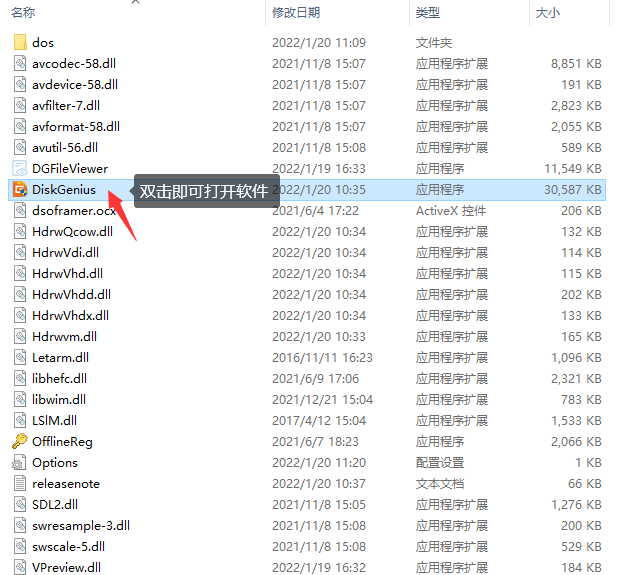
Connect the external hard drive to the computer. If Windows shows a formatting dialog, close it by choosing Cancel. Do not initialize, format, or run repair commands on the drive.
Step 2: Open the recovery software and check whether files are visible
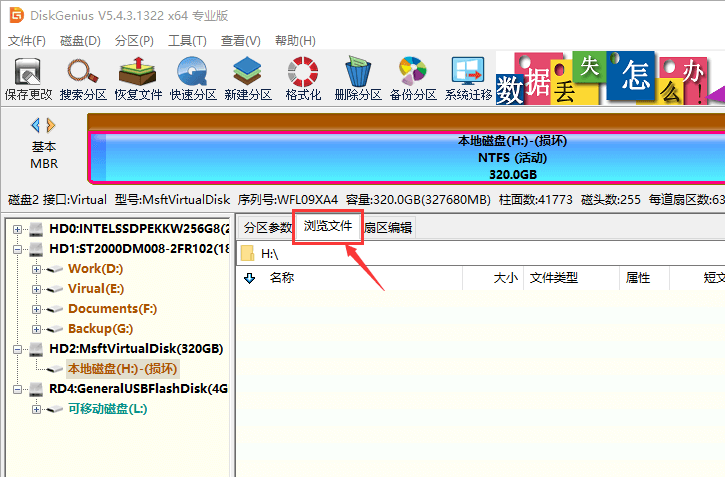
After opening DiskGenius, locate the external hard drive in the main window. Select the partition that cannot be opened in Windows, then choose Browse Files on the right side.
This check is useful because some partitions that Windows cannot open can still have their directory structure read directly by recovery software. If the files appear immediately, there is no need to continue with deeper recovery steps. Select the needed files and copy them to another location.
Step 3: Try loading the current partition, especially for NTFS
If the damaged partition is NTFS, try using the function that loads the current partition intelligently. Right-click the partition that needs recovery, then choose Load Current Partition Intelligently.
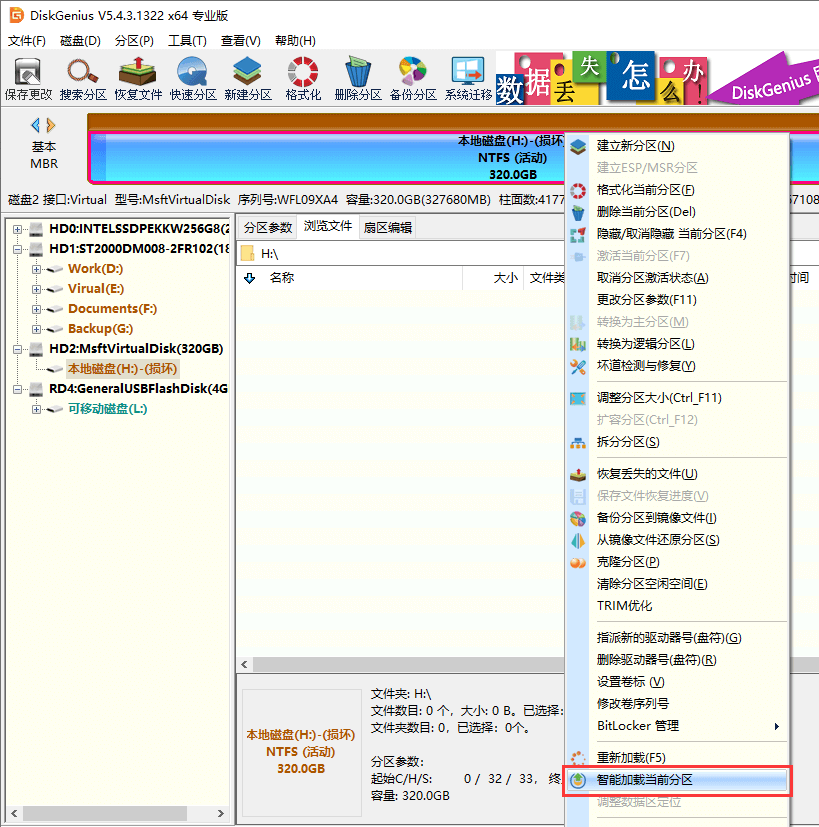
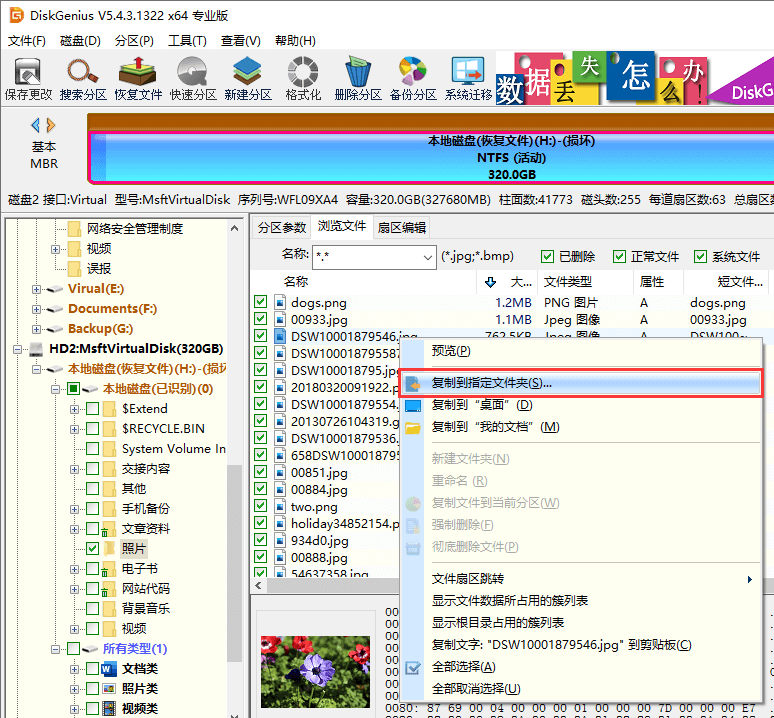
This option is helpful when the formatting prompt is caused by MFT damage. If the MFT-related problem is not too severe, the software may quickly reconstruct the visible file list. Once the required files are shown, copy them out immediately: select the files, right-click, and choose Copy to Specified Folder.
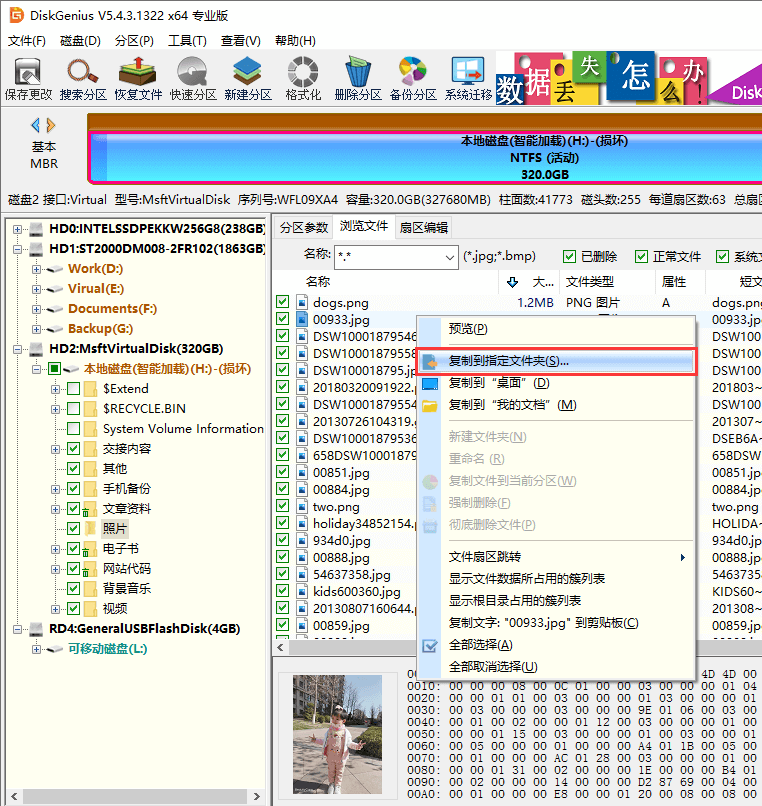
If the drive is not NTFS, or if the partition structure is badly damaged, continue with a file recovery scan.
Step 4: Scan the partition with Recover Files
Select the external hard drive partition that asks to be formatted, then click Recover Files on the toolbar.
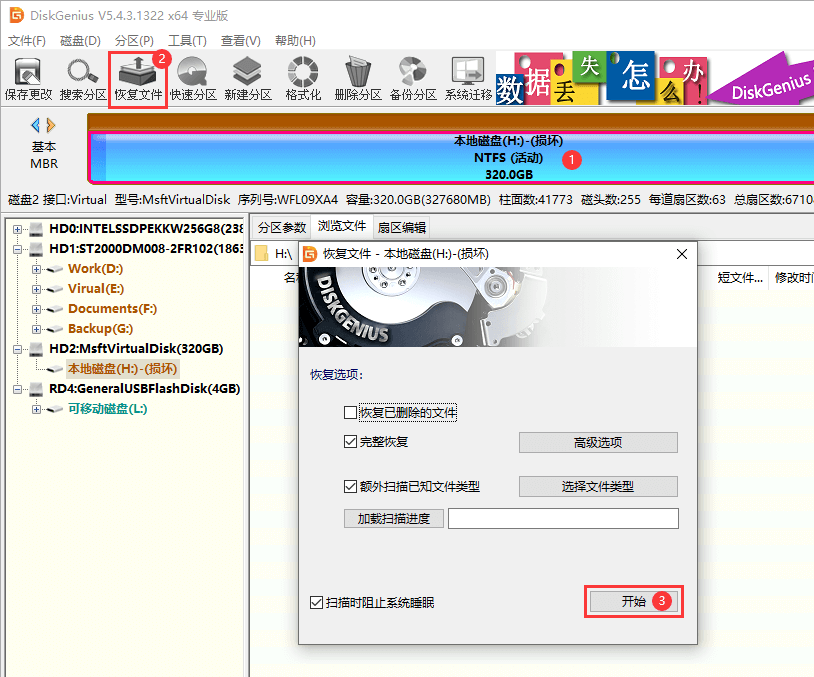
Use Recover Files for deleted files, formatted partitions, and partitions that cannot be opened. The Search for Lost Partitions function is meant for recovering missing partitions, so it is not the first choice when the partition still appears but cannot be accessed.
Click Start to let the software search for lost files.
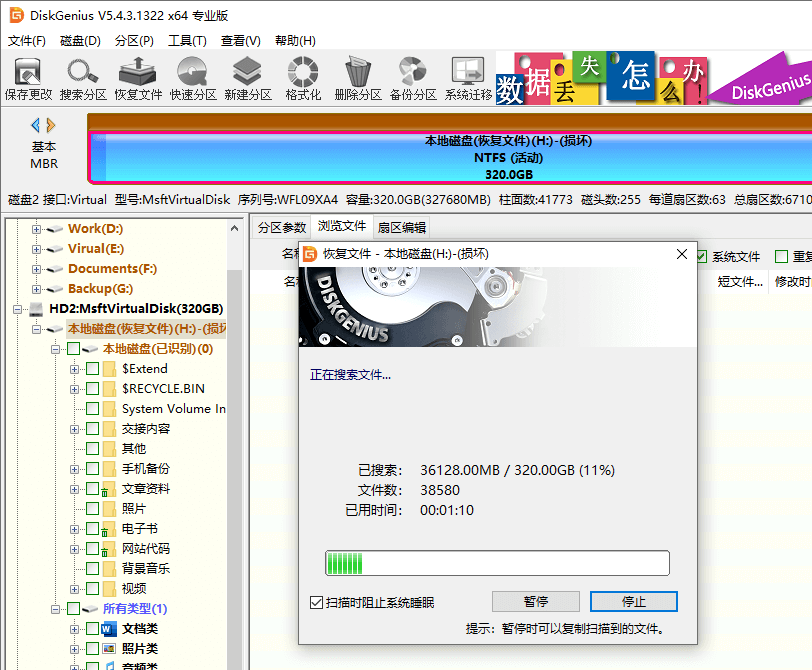
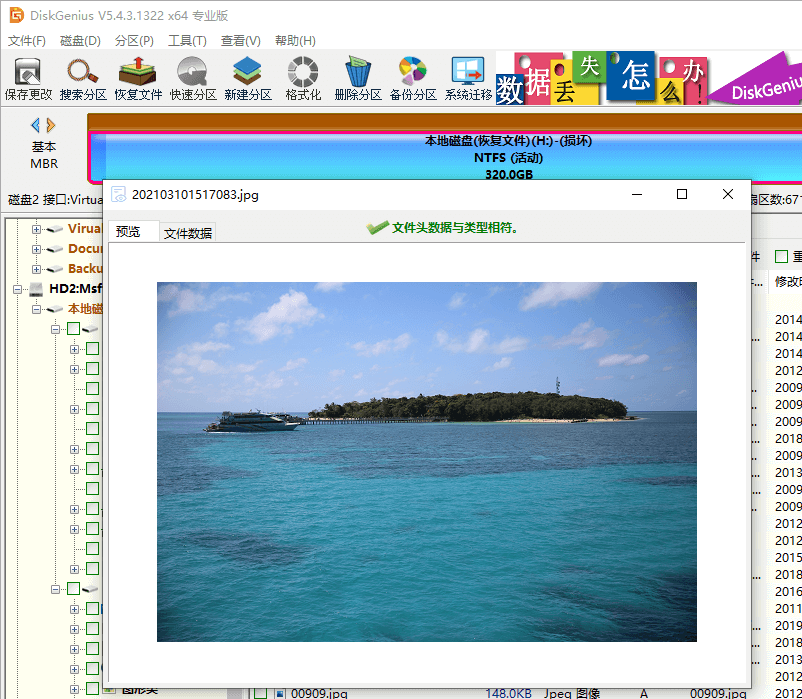
When scan results appear, preview files before copying them. Previewing helps confirm whether the file is the one you need and whether it is still intact. If a file cannot be previewed and the software reports that it is damaged, the file was likely already corrupted before recovery. If the preview opens normally, the file is usually recoverable.
Finally, select the files you want, right-click them, and choose Copy to Specified Folder. Save them to a different disk or another safe location on the computer.
How to repair the external drive after recovery
Once all important files have been recovered and checked, the simplest repair method is formatting the damaged partition. Formatting rebuilds the file system, which is why Windows suggests it when the existing file system cannot be recognized.
You can format the drive in Windows: right-click the drive letter that represents the external hard drive, choose Format, and then click Start in the window that appears.
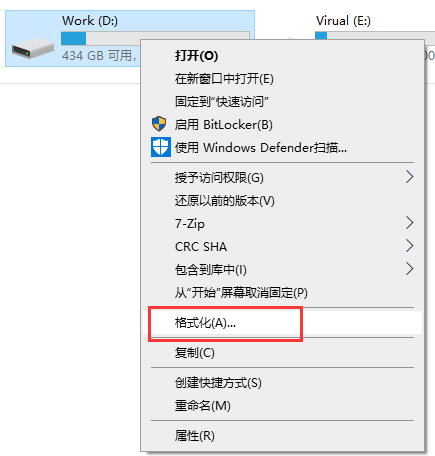
Do this only after confirming that the needed files have been restored. If the drive has physical problems such as many bad sectors, formatting may fail or the drive may become unreliable again.
Why an external hard drive may ask to be formatted
A formatting prompt can be caused by logical damage or physical disk failure. The following are common reasons.
Damaged file system
A file system organizes how data is stored and accessed. It divides disk space into storage units and records which files occupy which parts of the drive. If the file system is damaged, the operating system may no longer know how to read the partition. Because formatting creates a new file system, Windows often asks to format the drive when it cannot understand the existing one.
Unsupported file system type
Sometimes the drive is not actually damaged. It may simply use a file system that the current computer does not support. For example, a drive formatted with a Linux file system such as EXT4 may ask to be formatted when connected to a Windows computer. In that situation, the data may be readable in a Linux environment, or by using software that can read and write EXT4 partitions under Windows.
Insufficient USB power
External mechanical hard drives rely on internal spinning disks and need stable power for normal reading and writing. If the USB port cannot supply enough power, or if the connection is unstable, read/write operations may be interrupted and file system information can become inconsistent.
Improper removal
Many users unplug external drives without using the safe removal option. If the drive is removed while the system is still writing data, directory information may be left incomplete, disordered, or damaged. This is one of the common causes of a drive suddenly becoming inaccessible.
Bad sectors
Bad sectors are areas of the disk that can no longer be read from or written to normally. They can cause many symptoms, including inaccessible partitions, missing partitions, very slow drive response, and repeated errors during scanning or copying.
If an external hard drive asks to be formatted, the safest order is: stop using the drive, recover the files, copy them to another disk, and only then repair or format the partition.